How to Clean a Hacked WordPress Site: Step-by-Step Removal (2026)

Your hosting provider sends a suspension notice. Google slaps a “Deceptive site ahead” warning on your pages. Visitors are getting redirected to gambling sites. Or worse your site looks normal to you, but it’s silently serving fake CAPTCHA malware to every visitor arriving from search.
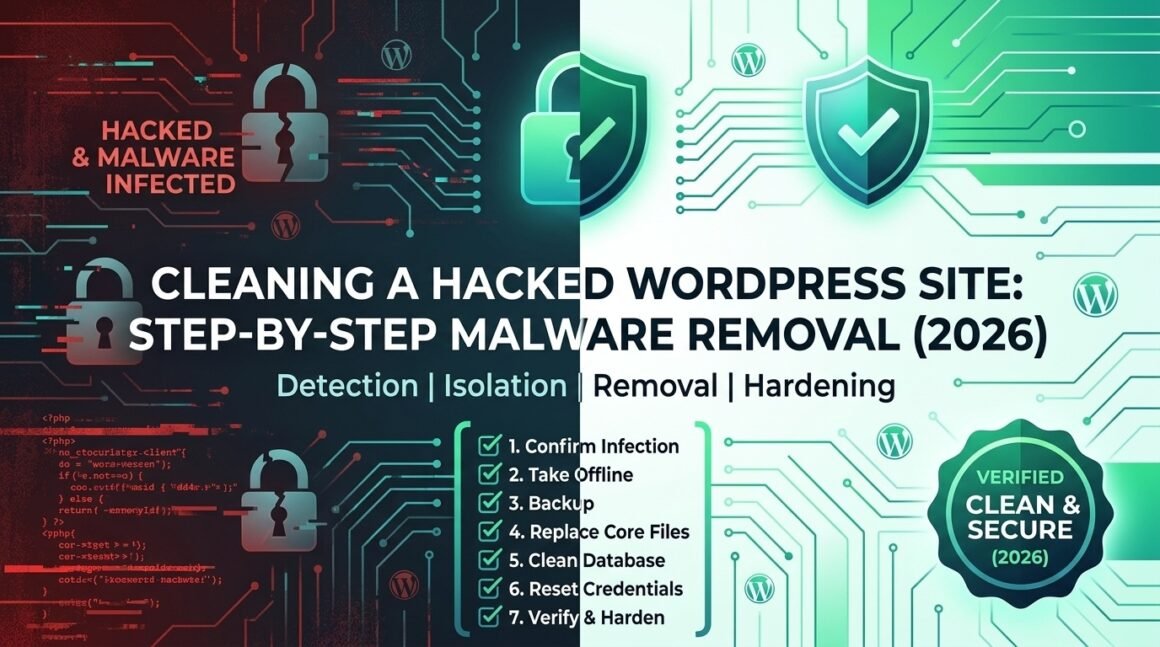
However you found out, the situation is the same: you need to clean a hacked WordPress site, find every backdoor, close the entry point, and make sure it doesn’t happen again. This guide walks through the entire cleanup process detection, isolation, manual removal, verification, and hardening in the order that matters.
If you have a clean backup from before the infection: restoring it and then hardening (skip to Step 7) is almost always faster and more thorough than manual cleanup. The steps below are for when you don’t have one, or you don’t know when the infection started.
Step 1: Confirm the Infection
Before you start deleting files, confirm what you’re dealing with. Not every weird behavior is malware — a broken plugin or a caching issue can mimic some symptoms. Check for these:
The reliable signs:
- Unexpected redirects visitors land on your pages but get bounced to spam, pharma, or gambling sites. These often fire only for users arriving from Google (referrer-based redirects), so test by clicking your own site from a Google search result in incognito.
- Google Search Console warnings “This site may be hacked” or “Deceptive site ahead.” Check the Security Issues report in Search Console.
- Unknown admin accounts user accounts you didn’t create, especially with Administrator role.
- Modified core files
index.php,wp-login.php,.htaccess, orwp-config.phpwith code you didn’t write. - Injected spam content hidden links, pharma text, or doorway pages visible only to search engines.
- Hosting provider suspension your host detected malware and took the site offline.
- Fake overlays a Cloudflare-style “verify you’re human” overlay you didn’t add, which is a sign of a ClickFix injection.
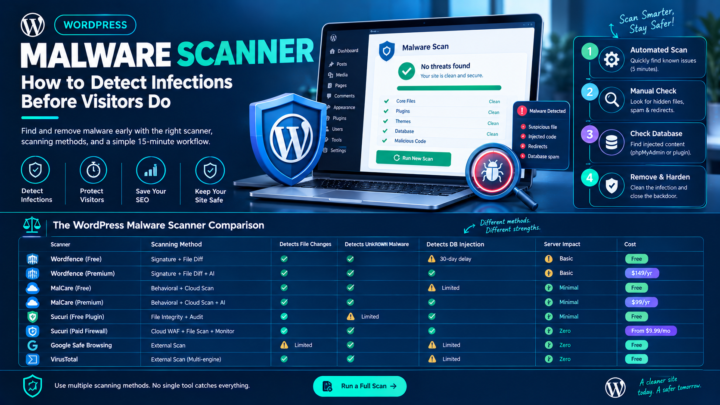
Quick scan: Install and run Wordfence or Sucuri’s free scanner. They’ll flag modified core files, known malware signatures, and suspicious code patterns. This gives you a map of the infection before you start cleaning.
Step 2: Take the Site Offline
Put the site into maintenance mode immediately. Every minute the site stays live with malware, it’s either infecting visitors, damaging your SEO, or getting deeper into your server.
Option A – Maintenance plugin: If you can still access wp-admin, activate a maintenance mode plugin.
Option B – .htaccess block: If you have FTP/SFTP access, add this to the top of .htaccess to block all traffic except your IP:
# Temporary lockdown — replace YOUR.IP.ADDRESS with your actual IP
Order Deny,Allow
Deny from all
Allow from YOUR.IP.ADDRESS
Option C – Contact your host. If you can’t access anything, your host can put the site in maintenance for you.
Step 3: Back Up the Infected Site
This sounds counterintuitive: why back up a hacked site? Because if you accidentally delete the wrong file during cleanup and break the site completely, you need a way to get back to “hacked but functional” rather than “gone.” Back up both the file system and the database.
# Via SSH — compress the entire WordPress directory
tar -czf /tmp/infected-backup-$(date +%Y%m%d).tar.gz /path/to/wordpress/

# Export the database
mysqldump -u USERNAME -p DATABASE_NAME > /tmp/infected-db-$(date +%Y%m%d).sql
Store this backup somewhere separate from your server: a local machine or a different cloud storage account. Label it clearly as the infected version so nobody accidentally restores it later.
Step 4: Clean the Infection
This is the core work. Do it in this order; each step depends on the one before it.
4a. Replace WordPress core files
Download a fresh copy of your current WordPress version from wordpress.org. Delete everything in your site’s root except:
wp-content/(your themes, plugins, and uploads)wp-config.php(your configuration, but you’ll inspect this next).htaccess(inspect it, don’t auto-delete)
Upload the clean WordPress core files from the fresh download. This guarantees that wp-admin/, wp-includes/, and root files like index.php and wp-login.php are malware-free.
# Via SSH — download and extract clean WordPress
wget https://wordpress.org/latest.tar.gz
tar -xzf latest.tar.gz

# Replace core directories (keep wp-content and wp-config.php)
rsync -a wordpress/wp-admin/ /path/to/site/wp-admin/
rsync -a wordpress/wp-includes/ /path/to/site/wp-includes/
cp wordpress/index.php /path/to/site/index.php
cp wordpress/wp-login.php /path/to/site/wp-login.php
# ... repeat for other root files
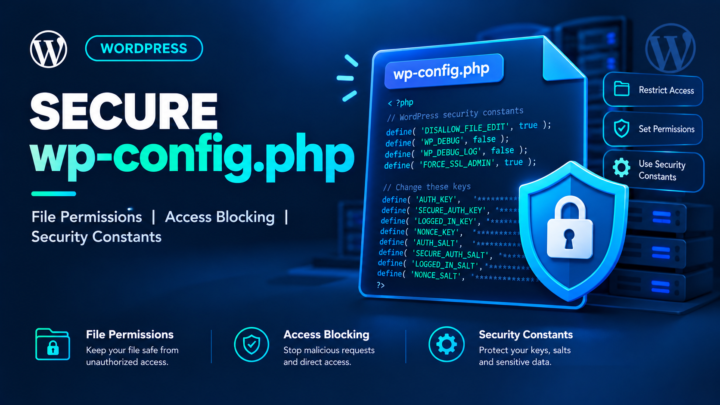
4b. Inspect wp-config.php
Open wp-config.php and read it line by line. Look for anything that shouldn’t be there:
eval(),base64_decode(),gzinflate(), orstr_rot13()calls; these are almost always malicious.requireorincludestatements pointing to files you didn’t create.- Any code before the opening
<?phpor after the closing statements.
Compare against a clean wp-config-sample.php from the fresh WordPress download. Your file should contain only database credentials, salts, table prefix, debug settings, and the ABSPATH block.
4c. Inspect .htaccess
Open .htaccess and check for:
- Redirect rules you didn’t write, especially
RewriteRuledirectives pointing to external domains. - Encoded strings or obfuscated PHP.
- Multiple
.htaccessfiles in subdirectories (checkwp-content/,wp-includes/, anduploads/).
Replace with a clean WordPress default if in doubt:
# BEGIN WordPress
<IfModule mod_rewrite.c>
RewriteEngine On
RewriteBase /
RewriteRule ^index\.php$ - [L]
RewriteCond %{REQUEST_FILENAME} !-f
RewriteCond %{REQUEST_FILENAME} !-d
RewriteRule . /index.php [L]
</IfModule>
# END WordPress
4d. Clean wp-content/plugins/ and wp-content/themes/
Delete every plugin and theme, then reinstall from clean sources. This is the single most reliable way to remove malware from plugins and themes, far more reliable than trying to diff each file.
- Note which plugins and themes are active (screenshot your Plugins page, or check the database).
- Delete the entire
wp-content/plugins/directory. - Delete all theme directories except a default theme (Twenty Twenty-Five or similar).
- Reinstall each plugin from wordpress.org or the original vendor.
- Reinstall your active theme from the original source.
Never reinstall a nulled (pirated) plugin or theme. If you were using nulled software, it was likely the entry point. Replace it with a licensed version or a legitimate alternative.
4e. Clean wp-content/uploads/
The uploads/ directory should contain only media files: images, PDFs, videos. It should not contain any .php files. Search for them:
find /path/to/site/wp-content/uploads/ -name "*.php" -type f
Delete every .php file found in uploads; they’re almost certainly backdoors. Also check for files with double extensions (image.jpg.php) or suspicious names (wp-tmp.php, social.png.php).
4f. Search the database for injected content
Malware often injects spam links, JavaScript, or redirects directly into post content, widget text, or option values:
-- Search for common malware signatures in posts
SELECT ID, post_title FROM wp_posts
WHERE post_content LIKE '%eval(%'
   OR post_content LIKE '%base64_decode%'
   OR post_content LIKE '%<script%src=%';

-- Search in options (widgets, custom settings)
SELECT option_name FROM wp_options
WHERE option_value LIKE '%eval(%'
   OR option_value LIKE '%base64_decode%'
   OR option_value LIKE '%<iframe%';
Clean any infected rows. Be careful in the options table; wrong changes break the site. If you’re not comfortable with SQL, use Wordfence’s database scan or Better Search Replace to find and remove the injected strings.
4g. Hunt for backdoors
Backdoors are hidden files or code that let the attacker back in even after you clean the visible infection. Common hiding spots:
.phpfiles inuploads/(covered above).- Files named to look legitimate:
wp-tmp.php,class-wp-cache.php,social.png.php. - Code injected into legitimate plugin files that
include()an external payload. - Rogue cron jobs check
wp_optionsforcronentries you don’t recognize:
SELECT option_value FROM wp_options WHERE option_name = 'cron';
Also check for malicious cron on the server level:
crontab -l
cat /etc/cron.d/*
Search your entire site for obfuscation patterns:
grep -rn "eval(base64_decode" /path/to/site/wp-content/
grep -rn "eval(gzinflate" /path/to/site/wp-content/
grep -rn "eval(str_rot13" /path/to/site/wp-content/
grep -rn "\$GLOBALS\[.*\](.*\$GLOBALS" /path/to/site/wp-content/
Every hit needs manual inspection. Some legitimate plugins use base64_decode but eval(base64_decode(...)) is almost always malware.
Step 5: Remove Rogue Users and Reset All Credentials
Delete unknown admin accounts
-- List all administrators
SELECT u.ID, u.user_login, u.user_email
FROM wp_users u
JOIN wp_usermeta m ON u.ID = m.user_id
WHERE m.meta_key = 'wp_capabilities'
  AND m.meta_value LIKE '%administrator%';
Delete any account you don’t recognize. If you’re unsure, demote it to Subscriber first, then investigate.
Reset every password
- All WordPress admin and editor passwords generate strong, unique passwords.
- Database password update in
wp-config.phpafter changing. - FTP/SFTP passwords.
- Hosting panel (cPanel, Plesk) password.
- Any API keys stored in
wp-config.phpor plugin settings.
Regenerate WordPress salts
Go to api.wordpress.org/secret-key/1.1/salt/, copy the output, and replace the salt block in wp-config.php. This invalidates every existing login session, including any session the attacker may be using.
Step 6: Verify the Cleanup
Don’t assume the site is clean because the symptoms stopped. Verify:
- Run a full scan with Wordfence or Sucuri. Zero findings.
- Check Google Search Console Security Issues report should be empty. If it still shows warnings, click “Request Review” after confirming the site is clean.
- Check Google Safe Browsing visit
https://transparencyreport.google.com/safe-browsing/search?url=yourdomain.com. - Test the site in incognito from multiple devices. Click through from a Google search result to test referrer-based redirects.
- Check all pages, especially high-traffic ones, for injected content or overlays.
- Monitor for 48–72 hours. Some malware reactivates on a timer or cron schedule.
Important Google note: If your site was flagged as a “Repeat Offender” by Google Safe Browsing, you may have to wait 30 days before requesting a review. This makes getting the cleanup right the first time critical.
Step 7: Harden to Prevent Reinfection
Cleaning without hardening guarantees reinfection. Apply these immediately:
Update everything. WordPress core, every plugin, every theme, all to the latest version. Outdated software with known vulnerabilities is the number-one entry point.
Delete unused plugins and themes. Deactivated plugins can still be exploited if their files are on the server. Delete them entirely.
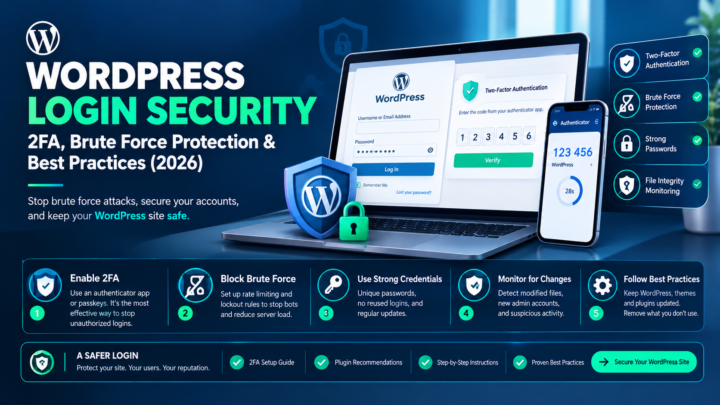
Enable two-factor authentication on every admin account. Wordfence, WP 2FA, or Google Authenticator.
Limit login attempts. Block IPs after repeated failed logins. Limit Login Attempts Reloaded is a solid free option.
Set correct file permissions:
# Directories: 755, Files: 644, wp-config.php: 600
find /path/to/site/ -type d -exec chmod 755 {} \;
find /path/to/site/ -type f -exec chmod 644 {} \;
chmod 600 /path/to/site/wp-config.php
Disable the file editor — prevent code editing from wp-admin:
// Add to wp-config.php
define('DISALLOW_FILE_EDIT', true);
Install a security plugin with file integrity monitoring: Wordfence, Sucuri, or Solid Security. Configure it to alert you when core files are modified.
Set up automated daily backups stored off-server. If this ever happens again, a clean backup turns a multi-day disaster into a single restore.
Block PHP execution in uploads:
# Add to wp-content/uploads/.htaccess
<Files "*.php">
  Deny from all
</Files>
For the full prevention framework, see the complete WordPress security guide.
When to Call a Professional
Manual cleanup works for most infections, but some situations are beyond DIY:
- Server-level compromise: the infection is outside your WordPress directory, in the server OS or other sites on shared hosting.
- Rootkits: persistent malware that survives file replacement.
- Reinfection within hours: the backdoor is somewhere you can’t find.
- You don’t have SSH access: thorough cleanup is extremely difficult through FTP alone.
- Legal or compliance requirements: healthcare, finance, or government sites may need documented incident response from a qualified firm.
Professional cleanup services typically cost $200–$500 for a standard infection and include a warranty period. That’s cheap compared to the ongoing SEO and reputation damage from a site that keeps getting reinfected.
Cleaning a Hacked WordPress Site FAQ
How long does WordPress malware removal take?
For a standard infection with SSH access: 2–6 hours. Complex infections with database contamination, multiple backdoors, or server-level compromise can take a full day or more.
Will cleaning the malware fix my Google warning?
Not instantly. After cleaning, request a review in Google Search Console. Google typically reviews within 72 hours, but Repeat Offender sites may wait up to 30 days.
Can I just restore a backup?
If you have a confirmed clean backup from before the infection, yes this is the fastest and most thorough approach. After restoring, still apply all the hardening in Step 7, because the vulnerability that allowed the infection still exists in the backup.
Do I need to change my hosting?
Not necessarily, but if you’re on cheap shared hosting with poor isolation, other compromised sites on the same server can reinfect yours. Consider managed WordPress hosting (Cloudways, Kinsta, WP Engine) for better isolation and built-in security.
Should I reinstall WordPress from scratch?
Replacing core files (Step 4a) is effectively a core reinstall. A complete from-scratch installation new database, new content import is the nuclear option. It’s warranted only if the infection is so deep you can’t trust any existing file or database entry.
What about my SEO rankings?
Expect a temporary dip during the hack period and recovery. With a clean site and a successful Google review, rankings typically recover within 2–4 weeks. The longer the site stays infected, the longer recovery takes.
Protect Your Site Going Forward
A hacked WordPress site is fixable. A repeatedly hacked one is a structural problem weak passwords, outdated software, nulled plugins, or inadequate monitoring. The complete WordPress security guide covers the full prevention framework so this stays a one-time event.
This guide is for informational purposes. If your site handles sensitive data (healthcare, financial, government), consult a qualified security professional for incident-specific guidance and documented incident response.