Website Accessibility Checklist for Developers (2026)
 By Admin
9 min read
By Admin
9 min read 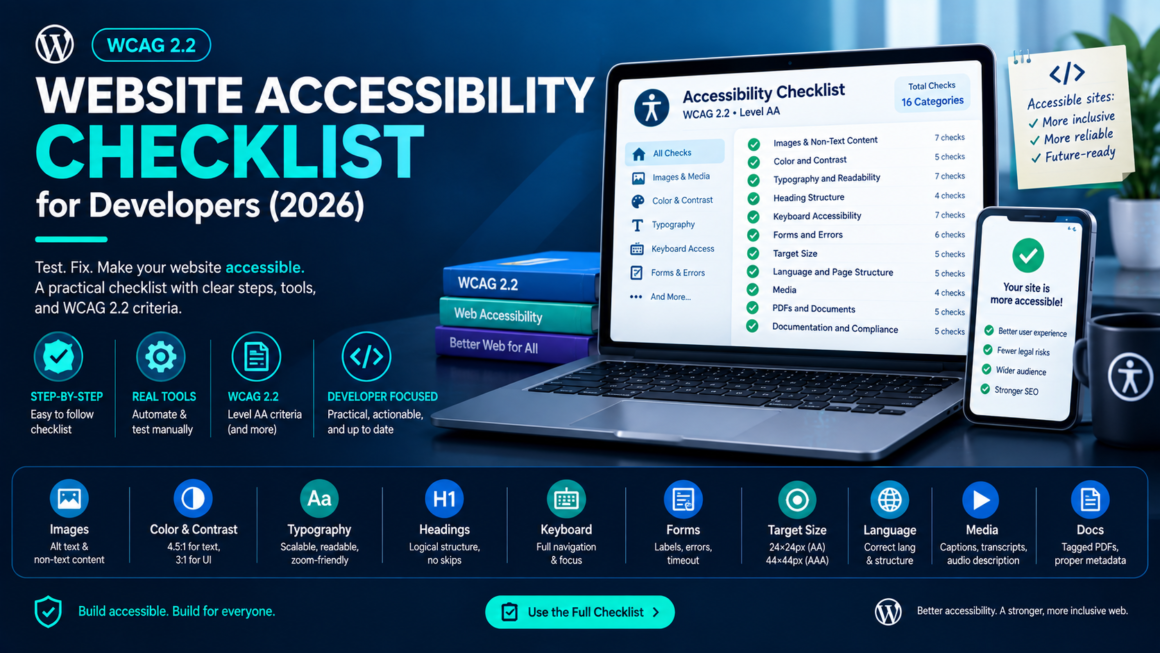
You’ve read the WCAG specification. You know accessibility matters. But when you sit down to actually audit a page, the 86 success criteria across three conformance levels blur together, and you’re not sure where to start or when you’re done.
This is the website accessibility checklist you work through before every launch, redesign, or quarterly review. It’s organized by what you’re actually checking, not by WCAG numbering, with the specific tests, the pass/fail criteria, the tools that automate each check, and links to the deep-dive guides where you need more context. Bookmark this page and use it as your working reference.
Run a full automated scan first to surface the machine-detectable issues, then work through the manual checks below. Automated tools catch roughly 30–40% of WCAG issues; this checklist covers the rest.
Images and Non-Text Content
What you’re checking: Every image, icon, chart, and graphic communicates its purpose to assistive technology or is correctly hidden when decorative.
| Check | Pass criteria | WCAG | How to test |
|---|---|---|---|
Every <img> has an alt attribute | No missing alt attributes (empty alt="" is fine for decorative) | 1.1.1 (A) | Alt Text Reviewer flags missing and junk alt |
| Informative images have descriptive alt text | Alt describes the image’s purpose in context, not just appearance | 1.1.1 (A) | Manual review — automated tools detect missing alt, not bad alt |
Decorative images use alt="" | Screen readers skip decorative images entirely | 1.1.1 (A) | Manual review |
| Functional images describe the action | Icon-button alt says “Search” not “magnifying glass” | 1.1.1 (A) | Manual review |
| Complex images have a long description | Charts, infographics, and data graphics have full detail in adjacent text or a data table | 1.1.1 (A) | Manual review |
| Inline SVGs have accessible names | role="img" + aria-label or <title> on informative SVGs; aria-hidden="true" on decorative | 1.1.1 (A) | Manual review |
| CSS background images don’t carry information | If they do, expose with role="img" + aria-label | 1.1.1 (A) | Manual review |
Deep dive: How to Write Alt Text for Images
Color and Contrast
What you’re checking: Text and UI elements are readable regardless of color vision, and color is never the sole carrier of meaning.
| Check | Pass criteria | WCAG | How to test |
|---|---|---|---|
| Normal text contrast ≥ 4.5:1 | Foreground/background ratio of 4.5:1 or higher | 1.4.3 (AA) | Contrast Checker |
| Large text contrast ≥ 3:1 | Text ≥24px (or ≥18.66px bold) at 3:1 or higher | 1.4.3 (AA) | Contrast Checker |
| UI component contrast ≥ 3:1 | Borders, focus rings, icons, chart elements at 3:1 against adjacent colors | 1.4.11 (AA) | Contrast Checker |
| Color is not the only visual cue | Status indicators, errors, links, charts use icon/text/pattern alongside color | 1.4.1 (A) | Colour Blindness Simulator |
| Focus indicators are visible | Focus ring has 3:1 contrast against adjacent colors | 2.4.7 (AA) | Manual keyboard test + contrast check |
Deep dives: WCAG Color Contrast Requirements · Designing for Color Blindness
Typography and Readability
What you’re checking: Text is readable, scalable, and survives user overrides.
| Check | Pass criteria | WCAG | How to test |
|---|---|---|---|
| Body text ≥ 16px (1rem) | No body text below the practical readability floor | Best practice | Typography Accessibility Checker |
| Font sizes use relative units | rem, em, % not fixed px | 1.4.4 (AA) | Code review |
| Page usable at 200% zoom | No clipped text, no horizontal scroll on single-column layouts | 1.4.4 (AA) | Browser zoom test |
| Page survives text spacing override | Line height 1.5×, letter spacing 0.12em, word spacing 0.16em, paragraph spacing 2em no content lost | 1.4.12 (AA) | Apply override bookmarklet, walk all pages |
| Line height ≥ 1.5 (unitless) | Body text line-height uses unitless number ≥ 1.5 | 1.4.12 (AA) | Typography Accessibility Checker |
| No fixed-height text containers | Containers use min-height, not height + overflow: hidden | 1.4.12 (AA) | Text spacing override test |
| Characters are distinguishable | Il1 and O0 test passes on body font | Best practice | Visual inspection |
Deep dive: Accessible Typography Guide
Heading Structure
What you’re checking: Headings create a logical document outline that screen readers can navigate.
| Check | Pass criteria | WCAG | How to test |
|---|---|---|---|
Exactly one <h1> per page | The page has a single H1 describing its topic | 1.3.1 (A) | Heading Structure Map |
| Heading hierarchy is sequential | No skipped levels (H2 → H4 without H3) | 1.3.1 (A) | Heading Structure Map |
| Headings are real heading elements | <h2>, not styled <div class="heading"> | 1.3.1 (A) | Code review or automated scan |
| Heading text is descriptive | Each heading describes its section’s content | 2.4.6 (AA) | Manual review |
Deep dive: Heading Structure for Accessibility
Keyboard Accessibility
What you’re checking: Every interactive element is reachable and operable without a mouse.
| Check | Pass criteria | WCAG | How to test |
|---|---|---|---|
| All interactive elements reachable by Tab | Links, buttons, inputs, selects, custom widgets all receive keyboard focus | 2.1.1 (A) | Tab through the page end to end |
| No keyboard traps | Focus can always move away from every element | 2.1.2 (A) | Tab test: verify you can exit every modal, dropdown, and widget |
| Focus order matches visual order | Tab sequence is logical, not jumbled | 2.4.3 (AA) | Tab test: visual inspection of focus movement |
| Focus indicator is visible | Every focused element shows a visible outline or highlight | 2.4.7 (AA) | Tab test: watch for elements with outline: none and no replacement |
| Custom widgets have keyboard interaction | Dropdowns, tabs, accordions, date pickers work with arrow keys, Enter, Escape | 2.1.1 (A) | Manual keyboard test per component |
| Skip-to-content link present | First Tab stop is a “Skip to main content” link | 2.4.1 (A) | Tab once on page load; the skip link should appear |
| Modals trap focus correctly | Tab cycles within an open modal; Escape closes it; focus returns to trigger | 2.1.2 (A) / 2.4.3 (AA) | Open modal, Tab through, Escape |
Forms and Errors
What you’re checking: Form fields have labels, errors are described, and users have enough time.
| Check | Pass criteria | WCAG | How to test |
|---|---|---|---|
| Every input has a visible label | Associated via <label for=""> or aria-label / aria-labelledby | 1.3.1 (A) / 3.3.2 (A) | Automated scan + manual review |
| Required fields are indicated | Not by color alone text “(required)” or aria-required="true" | 1.4.1 (A) / 3.3.2 (A) | Manual review |
| Error messages name the field and describe the fix | “Please enter a valid email” not “Error: invalid input” | 3.3.1 (A) / 3.3.3 (AA) | Submit forms with bad data, check messages |
| Errors are linked to fields | aria-describedby or aria-errormessage connects the error to its input | 4.1.2 (A) | Screen reader test |
aria-invalid="true" set on errored fields | Screen readers announce the field as invalid | 4.1.2 (A) | Code review on error state |
| Session timeout warns and allows extension | Users get at least 20 seconds to extend before timeout | 2.2.1 (A) | Trigger a timeout, check for warning |
Target Size
What you’re checking: Interactive elements are large enough to tap or click reliably.
| Check | Pass criteria | WCAG | How to test |
|---|---|---|---|
| Targets ≥ 24×24px (AA) | Including padding — content + padding + border ≥ 24×24 CSS pixels | 2.5.8 (AA) | DevTools box model inspection |
| OR 24px spacing from adjacent targets | If target is < 24×24, at least 24px clear space to the nearest target | 2.5.8 (AA) | DevTools measurement |
| Aim for ≥ 44×44px (AAA) | Platform guidelines (Apple 44pt, Google 48dp) align with this | 2.5.5 (AAA) | DevTools measurement |
| Custom checkboxes/radios meet size | Styled replacements must meet target size (user-agent exemption lost) | 2.5.8 (AA) | DevTools inspection |
| Packed icon rows have adequate spacing | Social links, toolbars, action buttons: check hit areas and gaps | 2.5.8 (AA) | Manual measurement |
Deep dive: WCAG 2.2 Target Size Requirements
Language and Page Structure
What you’re checking: The page communicates its language and structure programmatically.
| Check | Pass criteria | WCAG | How to test |
|---|---|---|---|
<html lang="en"> set correctly | Language matches the page’s primary content | 3.1.1 (A) | Code review |
| Language changes marked inline | Foreign phrases wrapped in <span lang="fr"> etc. | 3.1.2 (AA) | Manual review |
Page has a descriptive <title> | Unique, describes the page’s purpose | 2.4.2 (A) | Check browser tab |
| Landmark regions used | <header>, <nav>, <main>, <footer> or ARIA landmarks | 1.3.1 (A) | Screen reader landmark navigation test |
Lists use <ul> / <ol> / <dl> | Not divs styled to look like lists | 1.3.1 (A) | Code review |
Media
What you’re checking: Audio and video content is accessible.
| Check | Pass criteria | WCAG | How to test |
|---|---|---|---|
| Videos have captions | Synchronized, accurate, human-reviewed | 1.2.2 (A) | Watch with captions on |
| Pre-recorded audio has a transcript | Full text alternative available | 1.2.1 (A) | Check for transcript link |
| No auto-playing audio | Or a mechanism to pause/stop/mute within the first 3 seconds | 1.4.2 (A) | Load page, listen |
| Audio descriptions for video (if applicable) | Visual-only information is described in audio | 1.2.5 (AA) | Watch with eyes closed; does it make sense? |
PDFs and Documents
What you’re checking: Downloadable documents meet the same standards as web pages.
| Check | Pass criteria | WCAG | How to test |
|---|---|---|---|
| PDFs are tagged | Tag tree present with proper heading, paragraph, list, table, and figure tags | 1.3.1 (A) | PDF Accessibility Checker |
| PDF has title and language in metadata | Set in Document Properties, not just the filename | 2.4.2 (A) / 3.1.1 (A) | Check document properties |
| PDF images have alt text | Every <Figure> tag has alternate text | 1.1.1 (A) | PDF Accessibility Checker |
| PDF tables have header cells | <TH> tags with scope, not all <TD> | 1.3.1 (A) | Screen reader test or Acrobat accessibility check |
| PDF reading order is logical | Multi-column layouts flow correctly | 1.3.2 (A) | Screen reader test |
Deep dive: PDF Accessibility Guide
Documentation and Compliance
What you’re checking: Your accessibility work is documented and your legal obligations are met.
| Check | Pass criteria | How to do it |
|---|---|---|
| Accessibility statement published | Public page at /accessibility with commitment, known issues, and contact info | Accessibility Statement Generator |
| VPAT / ACR completed | Criterion-by-criterion conformance report for enterprise and government buyers | Free VPAT Generator |
| HIPAA + accessibility dual compliance (healthcare) | Both data protection and access requirements verified | HIPAA Website Risk Check |
| Remediation roadmap maintained | Known issues tracked with priorities, owners, and target dates | Internal documentation |
| Testing cadence established | Quarterly or after every major release, not once and done | Internal process |
Deep dives: How to Write an Accessibility Statement · How to Create a VPAT · Healthcare Website Accessibility
The Testing Workflow
Don’t try to check everything at once. This order gets the most coverage in the least time:
1. Automated scan (5 minutes). Run a full scan to surface contrast failures, missing alt text, heading errors, missing labels, and other machine-detectable issues. Fix these first; they’re the fastest wins.
2. Keyboard walkthrough (15 minutes per page). Tab through the entire page. Can you reach every interactive element? Can you operate every widget? Can you always move away? Is focus visible? This catches what no automated tool can.
3. Screen reader test (15 minutes per page). Turn on NVDA (Windows) or VoiceOver (macOS). Navigate by headings, landmarks, form fields, and links. Does the page make sense? Are images described? Are forms labeled? Do custom widgets announce their state?
4. Zoom and text spacing test (5 minutes). Zoom to 200% any content lost? Apply the SC 1.4.12 text spacing override any overflow or clipping?
5. Color test (5 minutes). Run through the Colour Blindness Simulator under deuteranopia. Does every piece of information survive without color?
6. Document check. If you publish PDFs, run them through the PDF Accessibility Checker.
Total for a single page: under an hour. For a site, prioritize the five highest-traffic pages and all unique templates (homepage, product page, form, blog post, checkout). Fix those, and most of the site inherits the fixes through shared components.
Website Accessibility Checklist FAQ
How many WCAG criteria do I need to pass for AA?
All applicable Level A and Level AA success criteria. For WCAG 2.2, that’s approximately 55 criteria (the exact count depends on what’s applicable to your content type).
Can I automate the whole thing?
No. Automated tools catch roughly 30–40% of issues, mostly contrast, missing alt attributes, heading sequence, and missing labels. Keyboard behavior, meaningful alt text, reading order, and screen reader experience require manual testing.
How often should I audit?
At minimum, quarterly, or after every major release, redesign, or content migration. Accessibility isn’t a one-time project; new content and features introduce new issues.
What about mobile?
WCAG applies to all platforms. Test on real devices — touch targets, zoom behavior, and screen reader interaction differ between desktop and mobile. iOS VoiceOver and Android TalkBack are your mobile testing tools.
Which pages should I test first?
The highest-traffic pages plus every unique template. Homepage, landing pages, product/service pages, contact forms, checkout/signup flows, and one blog post. Shared components (nav, footer, forms) propagate fixes across the site.
This checklist covers the WCAG 2.2 Level AA requirements most relevant to web applications and content sites. For the full specification, refer to the WCAG 2.2 standard. This is general guidance, not legal advice.