Accessible Forms: Labels, Errors, Validation & ARIA Patterns
 By Admin
15 min read
By Admin
15 min read 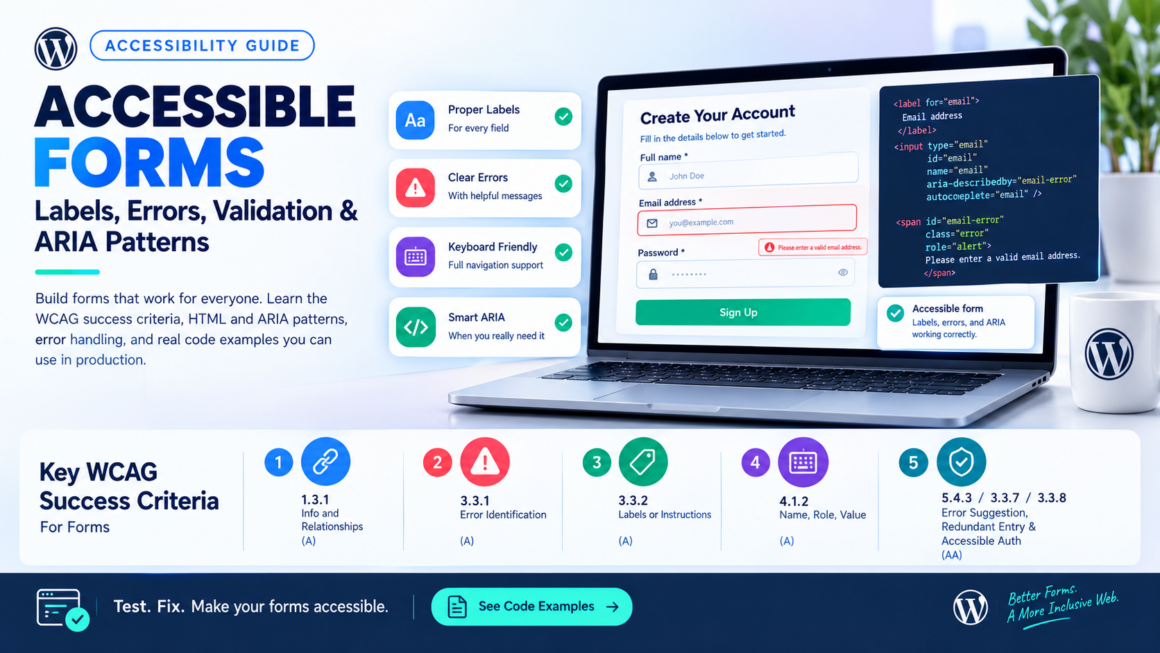
Forms are where accessibility breaks hardest. A sighted mouse user can scan a page, guess which label goes with which field, spot a red outline, and move on. A screen reader user hitting the same form may hear “edit text, blank” – no label, no hint, no idea what to type. A keyboard user may tab into a date picker and never tab out. A user with a cognitive disability may submit a form, get a page full of errors, and have no idea which field failed or why.
The result: abandoned checkouts, lost leads, failed signups, and in regulated industries, legal exposure.
This guide covers the WCAG success criteria that apply to forms, the HTML and ARIA patterns that satisfy them, the validation and error handling patterns that actually work with assistive technology, and the common mistakes that make forms fail – with code examples you can copy into production.
The WCAG Success Criteria That Apply to Forms
Eight WCAG 2.2 success criteria directly govern form behavior. Miss any one and the form fails compliance:
Level A (minimum):
- 1.3.1 Info and Relationships – Programmatic structure matches visual presentation. If a label visually sits next to a field, the code must associate them.
- 3.3.1 Error Identification – When an input error is detected, the error is identified and described to the user in text. Color alone is not enough.
- 3.3.2 Labels or Instructions – Labels or instructions are provided when content requires user input.
- 4.1.2 Name, Role, Value – All UI components (including form controls) have an accessible name and expose their state programmatically.
Level AA (standard target):
- 1.4.3 Contrast – Text in labels, placeholders, and error messages meets 4.5:1 contrast ratio.
- 3.3.3 Error Suggestion – When an error is detected and suggestions are known, they’re provided to the user (unless it would compromise security).
- 3.3.7 Redundant Entry – Information the user has already provided in the same process is auto-populated or available for selection. Don’t make users re-type their address on the confirmation page.
- 3.3.8 Accessible Authentication (Minimum) – No cognitive function test (like a CAPTCHA puzzle) is required to log in, unless an alternative is available. Password managers and paste must work.
Labels: The Foundation of Every Accessible Form
A form field without a programmatic label is invisible to assistive technology. This is the single most common form accessibility failure, and it’s the easiest to fix.
The right way: <label> with for
<label for="email">Email address</label>
<input type="email" id="email" name="email" autocomplete="email">
The for attribute on the <label> matches the id on the <input>. This creates a programmatic association that:
- Tells screen readers what the field is (“Email address, edit text”)
- Makes the label clickable – clicking “Email address” focuses the input (larger hit target, helps motor impairments)
- Works in every browser and every screen reader, today
Wrapping labels (implicit association)
<label>
  Email address
  <input type="email" name="email" autocomplete="email">
</label>
This works in most screen readers but explicit for/id is more reliable and easier to style. Use wrapping labels for simple checkbox and radio patterns:
<label>
  <input type="checkbox" name="terms"> I agree to the terms of service
</label>
What NOT to use as a label
Placeholder text is not a label. Placeholders disappear when the user types, leaving them with no reference for what the field contains. They also fail contrast requirements in most implementations (light gray on white). A placeholder is a hint, not a label.
<!-- Wrong: placeholder as the only label -->
<input type="email" placeholder="Email address">

<!-- Right: visible label + helpful placeholder -->
<label for="email">Email address</label>
<input type="email" id="email" placeholder="you@example.com" autocomplete="email">
title attribute is not a reliable label. Some screen readers read it as a last resort, but it’s not consistently supported and it’s invisible to sighted users.
aria-label works but hides the label visually. Use it only when a visible label genuinely can’t exist (like a search field with a magnifying glass icon and a submit button that makes the purpose obvious):
<input type="search" aria-label="Search articles" autocomplete="off">
Grouping related fields with <fieldset> and <legend>
Radio buttons, checkbox groups, and multi-field inputs (like a date split into day/month/year) need a group label. Individual labels (“Day”, “Month”, “Year”) make no sense in isolation – a screen reader user hearing “Day, edit text” doesn’t know day of what.
<fieldset>
  <legend>Date of birth</legend>
  <label for="dob-month">Month</label>
  <input type="text" id="dob-month" name="dob-month" autocomplete="bday-month">

  <label for="dob-day">Day</label>
  <input type="text" id="dob-day" name="dob-day" autocomplete="bday-day">

  <label for="dob-year">Year</label>
  <input type="text" id="dob-year" name="dob-year" autocomplete="bday-year">
</fieldset>
A screen reader announces: “Date of birth, group. Month, edit text.” Now the user has full context.
The same pattern applies to radio groups:
<fieldset>
  <legend>Preferred contact method</legend>
  <label><input type="radio" name="contact" value="email"> Email</label>
  <label><input type="radio" name="contact" value="phone"> Phone</label>
  <label><input type="radio" name="contact" value="text"> Text message</label>
</fieldset>
Required Fields and Input Instructions
Marking required fields
The asterisk convention is widespread but not accessible by itself. A screen reader doesn’t automatically announce “*” as “required.” Use the required attribute or aria-required="true":
<label for="name">Full name <span aria-hidden="true">*</span></label>
<input type="text" id="name" name="name" required autocomplete="name">
The required attribute makes the screen reader announce “Full name, required, edit text.” The visual asterisk is hidden from screen readers with aria-hidden="true" to avoid redundant announcements (“Full name, star, required” is noisy).
Add a note at the top of the form explaining what the asterisk means – this helps sighted users who may not know the convention:
<p>Fields marked with <span aria-hidden="true">*</span><span class="sr-only">an asterisk</span> are required.</p>
Providing format instructions
When a field expects a specific format, say so in the label or instructions – before the user types, not after they fail:
<label for="phone">Phone number</label>
<input type="tel" id="phone" name="phone"
       aria-describedby="phone-hint" autocomplete="tel">
<span id="phone-hint">Format: (555) 123-4567</span>
aria-describedby links supplementary text to the field. The screen reader announces: “Phone number, edit text. Format: (555) 123-4567.” The hint text remains visible on screen for everyone.
Error Handling That Actually Works
Most form validation fails accessibility in one of three ways: errors are communicated only through color, error messages aren’t associated with their fields, or the user isn’t moved to the error so they don’t know it exists. Here’s how to handle errors properly.
Inline field-level errors
When validation fails on a specific field, the error message must be:
- In text – not color alone (a red border is not an error message).
- Associated with the field – so a screen reader announces it when the user reaches the field.
- Descriptive – “Invalid” tells the user nothing. “Enter a valid email address, like you@example.com” tells them what to do.
<label for="email">Email address <span aria-hidden="true">*</span></label>
<input type="email" id="email" name="email" required
       aria-invalid="true"
       aria-describedby="email-error"
       autocomplete="email">
<span id="email-error" class="error-message" role="alert">
  Enter a valid email address, like you@example.com
</span>
Key attributes:
aria-invalid="true"– Tells the screen reader this field has an error. Announces as “invalid entry.”aria-describedby="email-error"– Links the error message to the field so it’s read when the field receives focus.role="alert"– Causes the error message to be announced immediately when it appears in the DOM (live region). Use this for errors that appear dynamically during client-side validation.
Error summary at the top of the form
For server-side validation or forms with many fields, add an error summary above the form listing all errors. Each error should link to the field it refers to:
<div role="alert" aria-labelledby="error-heading">
  <h2 id="error-heading">There were 2 errors with your submission</h2>
  <ul>
    <li><a href="#email">Email address - enter a valid email address</a></li>
    <li><a href="#password">Password - must be at least 8 characters</a></li>
  </ul>
</div>
After server-side validation, move focus to the error summary so the user encounters it immediately:
document.getElementById('error-heading').focus();
This pattern is recommended by the GOV.UK Design System and consistently tests well with screen reader users.
Client-side validation timing
Don’t validate on every keystroke. A screen reader user typing an email address doesn’t need to hear “Invalid email” after typing the first letter. Validate:
- On blur (when the user leaves the field) – appropriate for format validation.
- On submit – appropriate for required field checks and cross-field validation.
- After the first error – once a field has been flagged, real-time validation on subsequent input helps the user know when they’ve fixed it.
const emailInput = document.getElementById('email');
let hasBeenInvalid = false;

emailInput.addEventListener('blur', function() {
  validateEmail(this);
});

emailInput.addEventListener('input', function() {
  // Only re-validate on input if it was previously invalid
  if (hasBeenInvalid) {
    validateEmail(this);
  }
});

function validateEmail(input) {
  const errorEl = document.getElementById('email-error');
  if (!input.validity.valid) {
    input.setAttribute('aria-invalid', 'true');
    errorEl.textContent = 'Enter a valid email address, like you@example.com';
    hasBeenInvalid = true;
  } else {
    input.removeAttribute('aria-invalid');
    errorEl.textContent = '';
    hasBeenInvalid = false;
  }
}
ARIA Patterns for Complex Form Controls
Native HTML handles most form needs. Reach for ARIA only when native elements can’t do the job – and only when you’re prepared to build the full keyboard interaction that ARIA roles promise but don’t provide.
Custom select / dropdown
If you must build a custom dropdown (for styling reasons the native <select> can’t satisfy), the ARIA combobox pattern is what you need:
<label id="color-label" for="color-input">Favorite color</label>
<div role="combobox" aria-expanded="false" aria-haspopup="listbox"
     aria-owns="color-listbox">
  <input type="text" id="color-input" aria-autocomplete="list"
         aria-controls="color-listbox" aria-labelledby="color-label">
</div>
<ul id="color-listbox" role="listbox" aria-labelledby="color-label">
  <li role="option" id="opt-red">Red</li>
  <li role="option" id="opt-blue">Blue</li>
  <li role="option" id="opt-green">Green</li>
</ul>
This requires full keyboard support: Arrow keys to navigate options, Enter to select, Escape to close, and Home/End to jump to first/last option. If that sounds like a lot of work – it is. Use a tested library like Downshift or the native <select> element.
Toggle switches
A toggle that controls a setting needs to expose its state:
<button role="switch" aria-checked="false"
        aria-labelledby="notifications-label"
        onclick="toggleSwitch(this)">
  <span id="notifications-label">Email notifications</span>
</button>
function toggleSwitch(el) {
  const isChecked = el.getAttribute('aria-checked') === 'true';
  el.setAttribute('aria-checked', String(!isChecked));
}
Screen reader announces: “Email notifications, switch, off.” After toggle: “Email notifications, switch, on.”
Live regions for async validation
When validation happens server-side (checking if a username is taken, for example), the result appears asynchronously. Use aria-live to announce it:
<label for="username">Username</label>
<input type="text" id="username" name="username"
       aria-describedby="username-status" autocomplete="username">
<span id="username-status" aria-live="polite"></span>
When the check completes:
document.getElementById('username-status').textContent =
  'Username "alex123" is available';
Use aria-live="polite" so the announcement waits until the screen reader finishes its current output. Use aria-live="assertive" only for urgent messages (errors on submit, session timeouts).
Keyboard Accessibility in Forms
Every form interaction must work without a mouse. This is WCAG 2.1.1 (Keyboard) and 2.1.2 (No Keyboard Trap).
Tab order
Form fields should follow a logical order that matches the visual layout. If your form visually flows top to bottom but tab order jumps from the email field to the submit button (skipping the password field), that’s a failure.
Don’t use tabindex values greater than 0. They override the natural DOM order and create unpredictable tab sequences. Use tabindex="0" to make non-interactive elements focusable, and tabindex="-1" to make elements programmatically focusable (for moving focus to error summaries). That’s it.
Focus visibility
Every focused field must have a visible indicator. Browsers provide a default outline, but many CSS resets remove it:
/* Don't do this */
*:focus { outline: none; }

/* Do this instead */
input:focus, select:focus, textarea:focus, button:focus {
  outline: 2px solid #1a73e8;
  outline-offset: 2px;
}
The focus indicator must have at least 3:1 contrast against the background (WCAG 2.4.11, Level AA in WCAG 2.2).
Keyboard traps
Modal dialogs, date pickers, and custom dropdowns are the most common keyboard traps. The user tabs in and can’t tab out. Every custom widget must:
- Trap focus inside a modal (Tab wraps from last to first element) but release it when the modal closes.
- Allow Escape to close overlays and return focus to the trigger element.
- Never require a mouse click to exit a component.
The WCAG 2.2 Form Additions
WCAG 2.2 added two success criteria specifically targeting form usability:
3.3.7 Redundant Entry (Level A)
If the user already entered information in an earlier step of a process, don’t ask for it again. Auto-populate it or let them select it from what they already provided.
Common violations:
- Multi-step checkout that asks for the billing address, then asks for the shipping address without an option to copy it.
- Account creation flow that asks for the email on step 1, then asks for it again on step 3 for confirmation.
- Support forms that ask users to re-type their account number after they already logged in.
How to meet it: Use autocomplete attributes so browsers and password managers can fill fields. Store submitted data within a session and pre-populate later steps. Provide a “same as billing” checkbox for address duplication.
3.3.8 Accessible Authentication (Level AA)
Users must not be required to solve a cognitive puzzle to log in. This means:
- Password fields must allow paste (so password managers work).
- CAPTCHAs that require identifying objects, solving math, or transcribing text fail this criterion unless an alternative method is available.
- A “click all the traffic lights” image challenge with no audio or other alternative fails.
What passes:
- Username/password with paste allowed and password manager support.
- Magic link or email-based authentication.
- Passkeys and WebAuthn (biometric login).
- CAPTCHAs with an accessible alternative (audio, email verification).
Common Form Accessibility Mistakes
These are the failures that appear in nearly every audit:
1. Placeholder as the only label. The placeholder disappears on input. The field becomes unlabeled.
2. Error messages not associated with fields. An error message appears on the page, but aria-describedby isn’t used to connect it to the field. A screen reader user has to hunt for it.
3. Color-only error indication. The field border turns red but no text message appears. Users who can’t distinguish red from green (8% of men) see no change.
4. No focus management after errors. The form submits, errors appear at the top of the page, but focus stays at the submit button. Screen reader users don’t know errors were added above.
5. Custom widgets without keyboard support. A styled dropdown that opens on click but doesn’t respond to arrow keys or Escape.
6. Missing autocomplete attributes. Browsers and password managers can’t help when the autocomplete attribute is missing. Adding autocomplete="email" or autocomplete="tel" takes five seconds and benefits every user.
7. Disabled submit buttons before validation. A grayed-out button with no explanation leaves users stuck. If you must disable submit, explain why: “Complete all required fields to continue.”
8. CAPTCHAs that block paste. Disabling paste in password fields forces users to type from memory, failing 3.3.8 and frustrating everyone.
Quick-Reference Checklist
Use this to audit any form against WCAG 2.2 Level AA:
Labels: Every input, select, and textarea has a programmatic label – either <label for="">, aria-label, or aria-labelledby. Related fields (radio groups, date components) are wrapped in <fieldset> with <legend>.
Instructions: Format hints are provided before input, not only in error messages. Required fields are marked with required or aria-required. The asterisk convention is explained at the top of the form.
Errors: Error messages are in text (not color alone), are associated with their fields via aria-describedby, and describe what to fix. An error summary with links appears at the top for multi-error forms. Focus moves to the error summary on submit.
Keyboard: All fields are reachable and operable by Tab, Shift+Tab, Enter, Space, and Arrow keys as appropriate. No keyboard traps exist. Focus indicators are visible with at least 3:1 contrast.
WCAG 2.2 additions: Information entered earlier in a multi-step process is auto-populated (3.3.7). Authentication doesn’t require a cognitive test; paste works in password fields (3.3.8).
Autocomplete: Fields for name, email, phone, address, and password include appropriate autocomplete attribute values.
Run these checks on every form your site has – contact forms, login pages, checkout flows, search bars, newsletter signups. A site can pass every other WCAG criterion and still fail on forms, because forms are where users actually interact.
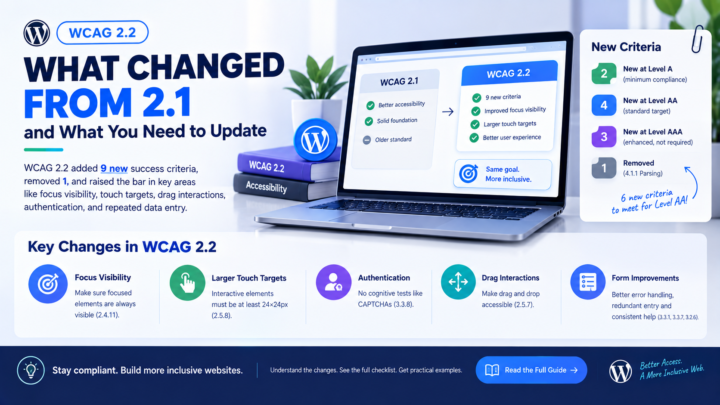
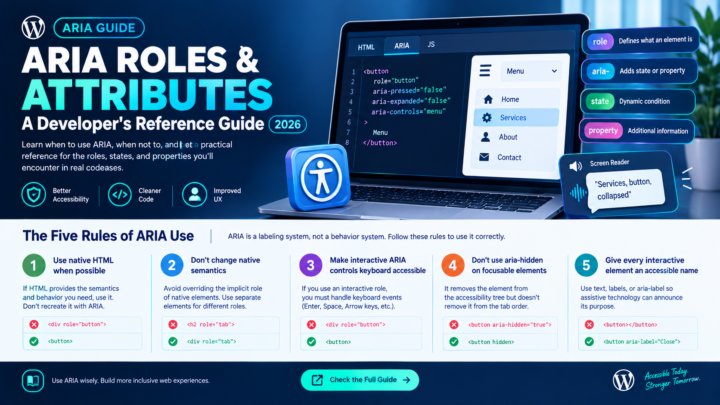
For a complete WCAG 2.2 Level AA audit beyond forms, use the WCAG 2.2 Checklist to track which success criteria your site passes and which need attention. For building keyboard support into navigation and other components, see the keyboard accessibility guide. For getting ARIA roles right beyond forms, see the ARIA roles and attributes reference.
Accessible Forms FAQ
Can I use only aria-label instead of a visible <label>?
Technically yes – aria-label satisfies WCAG 4.1.2. But a visible label is almost always better. It helps sighted users, makes the click target larger, and doesn’t rely on screen reader support for ARIA. Use aria-label only when the visual design makes a visible label genuinely redundant (like a search field with a clearly labeled button).
Should I validate on blur or on submit?
Both, in combination. Validate format on blur (so the user gets immediate feedback when they leave a field), and validate required fields on submit (so blank fields aren’t flagged before the user even reaches them). After the first error on a field, validate on input so the user knows when they’ve fixed it.
Is a custom-styled select accessible?
Almost never, out of the box. Native <select> elements are fully accessible by default. Custom selects built with <div> elements need role="listbox", role="option", full keyboard support (Arrow keys, Enter, Escape, type-ahead), and screen reader testing. Use a tested library or stick with native.
Do I need aria-errormessage or aria-describedby for errors?
aria-describedby has broad, reliable support across all screen readers. aria-errormessage is the newer, semantically correct attribute specifically for errors, but screen reader support is still inconsistent. For now, use aria-describedby – it’s the safer choice. You can add both for forward compatibility.
How do I make a multi-step form accessible?
Label each step clearly (“Step 2 of 4: Shipping address”). Use a progress indicator that’s accessible (not just visual). Auto-populate fields from previous steps (WCAG 3.3.7). Don’t time-out form sessions without warning. Make the “Back” button work without losing entered data.
This guide covers WCAG 2.2 Level AA form requirements. For forms in healthcare, financial, or government applications, additional standards (Section 508, HHS Section 504, EN 301 549) may apply – consult the applicable regulation alongside this guide.