Screen Reader Testing for Developers: NVDA & VoiceOver Basics
 By Admin
12 min read
By Admin
12 min read 
Automated accessibility scanners catch about 30-40% of WCAG issues. The rest – reading order problems, missing context, confusing announcements, broken live regions, unusable custom widgets – only show up when you actually listen to your page through a screen reader.
Most developers skip screen reader testing because they don’t know where to start. The tools feel unfamiliar, the keyboard shortcuts are overwhelming, and there’s no obvious checklist telling you what to test. This guide fixes that. It covers the two screen readers you can start using today for free – NVDA on Windows and VoiceOver on macOS – with the exact setup steps, the essential shortcuts you actually need, a structured testing workflow, and the most common issues you’ll find.
You don’t need to become an expert screen reader user. You need to know enough to catch the problems your automated tools miss.
Why Automated Testing Isn’t Enough
Automated scanners are good at catching structural problems: missing alt text, low contrast ratios, missing form labels, invalid ARIA attributes. Tools like the Accessibility Checker catch these quickly and reliably.
But automated tools can’t evaluate the user experience. They can’t tell you:
- Whether the reading order makes sense when content is visually reordered with CSS.
- Whether a custom dropdown announces its state (expanded/collapsed) and selected option.
- Whether a modal dialog traps focus correctly and returns focus to the trigger when closed.
- Whether a live region update (like a form error or a cart count change) is actually announced.
- Whether your heading structure tells a coherent story when read as an outline.
- Whether link text makes sense out of context (“click here” vs. “download the accessibility report”).
Screen reader testing fills this gap. It tells you what your users actually hear – not what your code intends them to hear.
NVDA on Windows: Setup and Essential Shortcuts
NVDA (NonVisual Desktop Access) is a free, open-source screen reader for Windows. It’s the most widely used free screen reader, and it’s the one most accessibility testers pair with Firefox or Chrome for web testing.
Install and configure NVDA
- Download NVDA from nvaccess.org.
- Run the installer. Choose “Install on this computer” (not portable mode) for full functionality.
- On first launch, NVDA opens a Welcome dialog. Check “Use Caps Lock as an NVDA modifier key” if you prefer it over the Insert key – either works, but Caps Lock is easier to reach on most keyboards.
- Go to NVDA Menu (Insert+N) > Preferences > Settings > Browse Mode. Check “Use screen layout” so content reads in visual order rather than source order.
Recommended browser: Firefox. NVDA’s support for Firefox is the most mature and best-documented combination. Chrome works too, but some ARIA behaviors differ slightly.
The shortcuts you actually need
You don’t need to memorize 50 shortcuts. These 12 cover 90% of web testing:
Navigation:
| Shortcut | Action |
|---|---|
| Insert + Down Arrow | Start reading from current position |
| Ctrl | Stop reading |
| Down Arrow | Next line |
| Up Arrow | Previous line |
| Tab | Next focusable element |
| Shift + Tab | Previous focusable element |
Quick navigation (browse mode):
| Shortcut | Action |
|---|---|
| H | Next heading |
| Shift + H | Previous heading |
| D | Next landmark |
| K | Next link |
| F | Next form field |
| B | Next button |
| T | Next table |
| L | Next list |
Element lists:
| Shortcut | Action |
|---|---|
| Insert + F7 | Open Elements List (headings, links, landmarks, form fields) |
The Elements List (Insert+F7) is the single most useful testing tool in NVDA. It shows you all headings, all links, all form fields, and all landmarks on the page – letting you audit structure without reading through the entire page.
NVDA speech viewer
Turn on the Speech Viewer (NVDA Menu > Tools > Speech Viewer) to see a running text log of everything NVDA announces. This is invaluable during testing – you can read what NVDA says instead of relying on your ears alone.
VoiceOver on macOS: Setup and Essential Shortcuts
VoiceOver is built into every Mac. No installation needed. It’s the primary screen reader for macOS and iOS testing, and it pairs best with Safari.
Enable and configure VoiceOver
- Press Cmd + F5 to toggle VoiceOver on/off. (On newer Macs with Touch ID, you may need to enable this shortcut in System Settings > Accessibility > VoiceOver.)
- The first time you enable it, VoiceOver launches a Quick Start tutorial. Run through it – it takes about five minutes and teaches the basics.
- Open VoiceOver Utility (VO + F8, where VO = Ctrl + Option) and go to Web > Web Rotor. Make sure Headings, Links, Form Controls, and Landmarks are checked.
Recommended browser: Safari. VoiceOver’s best screen reader support is with Safari. Chrome works but has some known VoiceOver compatibility gaps.
The shortcuts you actually need
VoiceOver uses the VO keys (Ctrl + Option) as a modifier for most commands:
Navigation:
| Shortcut | Action |
|---|---|
| VO + A | Read all from current position |
| Ctrl | Stop reading |
| VO + Right Arrow | Next element |
| VO + Left Arrow | Previous element |
| Tab | Next focusable element |
| Shift + Tab | Previous focusable element |
| VO + Space | Activate (click) current element |
Web Rotor (the key testing tool):
| Shortcut | Action |
|---|---|
| VO + U | Open the Rotor |
| Left/Right Arrow | Switch between Rotor lists (headings, links, landmarks, form controls) |
| Up/Down Arrow | Navigate items in the current list |
| Enter | Jump to selected item |
The Web Rotor (VO+U) is VoiceOver’s equivalent of NVDA’s Elements List. It lets you browse all headings, links, landmarks, and form controls as separate lists. Use it to quickly audit page structure.
Quick Nav (single-key navigation):
Press Left Arrow + Right Arrow simultaneously to toggle Quick Nav on. When Quick Nav is active, you can use single keys for quick navigation, similar to NVDA’s browse mode:
| Key | Action |
|---|---|
| H | Next heading |
| L | Next link |
| J | Next form control |
| W | Next landmark |
| T | Next table |
What to Test: A Structured Workflow
Don’t just “turn on the screen reader and see what happens.” Follow this structured approach to catch the issues that matter:
1. Page structure audit
Open the heading list (NVDA: Insert+F7, then Headings tab. VoiceOver: VO+U, then arrow to Headings). Check:
- Is there exactly one H1?
- Do headings follow a logical hierarchy (H1 > H2 > H3, no skipped levels)?
- Do the headings alone tell the story of the page? Could someone scanning just the headings understand what the page contains?
- Are headings used for structure (good) or just for visual styling (bad)?
If your heading outline doesn’t make sense on its own, it won’t make sense to a screen reader user navigating by headings – which is the most common way screen reader users scan a page.
2. Landmark check
Open the landmarks list (NVDA: Insert+F7, Landmarks tab. VoiceOver: VO+U, arrow to Landmarks). Check:
- Does the page have a
mainlandmark? - Does the navigation have
navlandmarks with descriptive labels (aria-label="Primary"vs just<nav>)? - Are there appropriate landmarks for header, footer, search, and complementary content?
- Are landmarks labeled when there are multiples of the same type? (Two unlabeled
<nav>elements are confusing.)
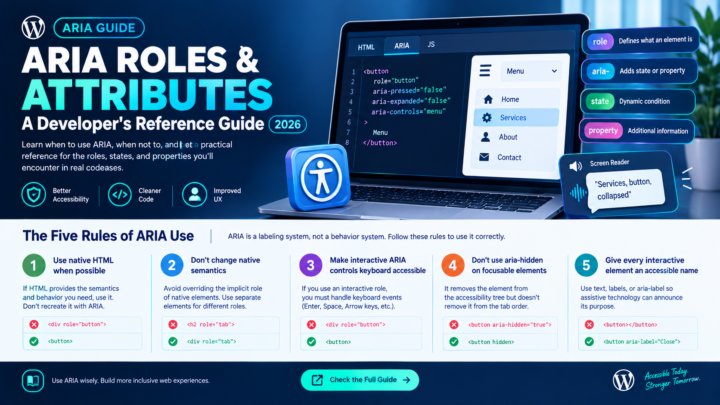
For a detailed reference on landmark roles, see the ARIA Roles and Attributes Guide.
3. Links and buttons
Open the links list (NVDA: Insert+F7, Links tab. VoiceOver: VO+U, arrow to Links). Check:
- Do link texts make sense out of context? A list of “click here”, “read more”, “learn more” links tells the user nothing.
- Are links and buttons distinguished correctly? Links navigate, buttons perform actions. A
<div onclick>that looks like a button but announces as nothing is a failure. - Do icon-only buttons have accessible names? A hamburger menu icon without an
aria-labelannounces as just “button” with no indication of what it does.
4. Form testing
Tab through every form field and check:
- Does each field announce its label when focused? If NVDA says just “edit” without a field name, the label association is broken.
- Are required fields announced as required? (
aria-required="true"or therequiredattribute.) - Do error messages announce when they appear? Submit the form with invalid data and listen – does the screen reader announce the error, or is it silent?
- Are field descriptions announced? Hint text below a field needs
aria-describedbyto be associated programmatically, not just visually. - Does the form announce success or failure after submission?
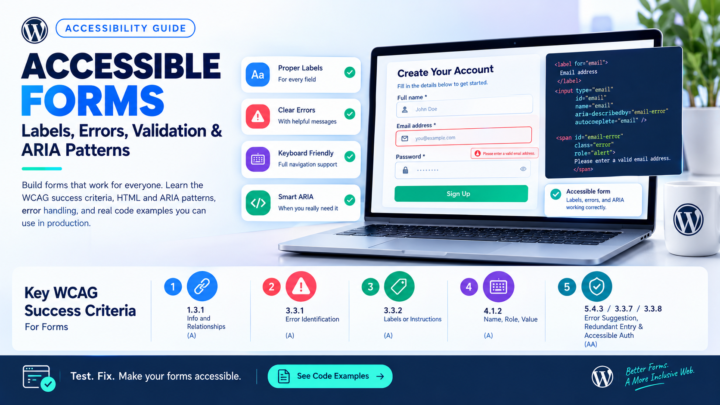
For detailed guidance on building accessible forms, see the accessible forms guide.
5. Interactive components
For each custom interactive component (dropdowns, modals, tabs, accordions, carousels), test:
- Custom dropdowns: Does the dropdown announce as a combobox or listbox? Can you navigate options with arrow keys? Does it announce the selected option? Does it announce expanded/collapsed state?
- Modals/dialogs: When the modal opens, does focus move inside it? Can you Tab through modal content without escaping behind the modal? Does Escape close it? Does focus return to the element that opened it?
- Tabs: Are tabs announced with their role (“tab 1 of 3”)? Can you switch tabs with arrow keys? Does the associated tab panel’s content update?
- Accordions: Do headers announce expanded/collapsed state? Can you toggle with Enter or Space?
6. Dynamic content and live regions
This is where most failures hide. Test:
- Add an item to a cart. Does the screen reader announce the cart update?
- Submit a form. Does the success/error message get announced without the user having to go find it?
- Trigger a notification or toast message. Is it announced?
- Load more content (infinite scroll, “Load More” button). Does the screen reader indicate new content is available?
Dynamic content needs ARIA live regions (aria-live="polite" or role="alert") to be announced automatically. Without them, the screen reader has no way to know content changed.
7. Reading order
Press the “read all” command (NVDA: Insert+Down Arrow. VoiceOver: VO+A) and listen to a section of the page. Check:
- Does the content read in a logical order?
- Are visually hidden elements (CSS
order,position: absolute, flexbox/grid reordering) read in a confusing sequence? - Is decorative content read aloud when it shouldn’t be? (Decorative images need empty alt text:
alt="".)
Common Issues You’ll Find (and How to Fix Them)
“Edit” with no label
The screen reader announces “edit” or “edit text” when focus reaches an input field, but doesn’t say what the field is for.
Cause: The input has no associated <label>, or the label uses placeholder instead of a proper <label> element.
Fix:
<!-- Bad: no label association -->
<input type="text" placeholder="Email address">

<!-- Good: explicit label -->
<label for="email">Email address</label>
<input type="text" id="email">
“Button” with no name
An icon button announces as just “button” with no description.
Fix:
<!-- Bad: no accessible name -->
<button><svg>...</svg></button>

<!-- Good: aria-label provides the name -->
<button aria-label="Close menu"><svg>...</svg></button>
“Link – link – link – link”
Multiple consecutive links with no descriptive text. Happens with social media icons, footer nav, and card grids where the entire card is wrapped in a link.
Fix: Add descriptive text (visible or visually hidden) to every link:
<a href="/twitter" aria-label="Follow us on Twitter">
  <svg>...</svg>
</a>
Silent form errors
Form validation errors appear visually but the screen reader says nothing.
Fix: Use aria-live="assertive" or role="alert" on error containers, and associate specific field errors with aria-describedby:
<input type="email" id="email" aria-describedby="email-error" aria-invalid="true">
<span id="email-error" role="alert">Enter a valid email address</span>
Modal focus escape
User can Tab out of a modal dialog and interact with the page behind it.
Fix: Implement a focus trap. When the modal is open, keep focus cycling within the modal’s focusable elements. Return focus to the trigger element when the modal closes. See the keyboard accessibility guide for focus management patterns.
Heading level chaos
The heading list shows H1, H3, H2, H4, H2 – a jumbled hierarchy that makes no structural sense.
Fix: Headings must follow a strict hierarchy. After the H1, sections start with H2. Subsections use H3. Never skip levels (H1 to H3 with no H2). Never use heading tags for visual styling – use CSS instead.
Mobile Screen Reader Testing: VoiceOver on iOS
If your site serves mobile users (and it does), test on an actual device:
- Enable VoiceOver: Settings > Accessibility > VoiceOver > On.
- Swipe right to move to the next element. Swipe left to move to the previous element.
- Double-tap to activate the focused element.
- Two-finger swipe up to read all from the current position.
- Use the Rotor (two-finger twist gesture) to switch between headings, links, and form controls, then swipe up/down to navigate by the selected type.
Mobile testing catches issues that desktop testing misses: touch targets that are too small (see the WCAG target size requirements), content that relies on hover states, and layouts that break at narrow viewports.
Testing Checklist
Use this checklist for every page you test:
Page structure: One H1 per page. Headings follow a logical hierarchy with no skipped levels. Page has main, nav, header, and footer landmarks. Multiple landmarks of the same type are labeled.
Forms: Every input has a programmatic label. Required fields are announced as required. Error messages are announced when they appear. Field hints are associated with aria-describedby. Form submission result (success/error) is announced.
Links and buttons: All links have descriptive text (no “click here”). Icon-only buttons have aria-label. Links navigate, buttons act – roles match behavior. Visited link state is maintained.
Interactive components: Custom dropdowns announce their role and state. Modals trap focus and return it on close. Tabs announce “tab X of Y” and switch with arrow keys. Accordions announce expanded/collapsed state.
Dynamic content: Cart updates announce new count. Form errors announce with aria-live or role="alert". Toast notifications announce to the screen reader. New loaded content is discoverable.
Screen Reader Testing FAQ
Do I need to test with JAWS too?
JAWS is the most widely used commercial screen reader, but it costs over $1,000 for a license. For development testing, NVDA covers the same ground for free. If your organization does formal accessibility audits, JAWS testing adds coverage – but NVDA + VoiceOver catches the vast majority of issues.
How long should screen reader testing take?
For a typical page (homepage, form page, product page), expect 15-20 minutes per page once you know the shortcuts. The first few sessions will be slower as you learn navigation. Build it into your QA process for critical user flows.
Should I test with every screen reader?
No. Test with NVDA + Firefox on Windows and VoiceOver + Safari on macOS. These two combinations cover the largest share of screen reader users. If you have iOS users, add VoiceOver on an iPhone. This isn’t different from cross-browser testing – you pick the combinations that cover your user base.
Can screen reader testing replace automated testing?
No. They’re complementary. Automated tools like the Accessibility Checker catch structural issues (missing alt text, low contrast, missing labels) faster and more consistently than manual testing. Screen reader testing catches the experience issues that automated tools can’t evaluate. Run automated scans first, fix those issues, then screen reader test.
What if I’m not sure whether something is a real issue?
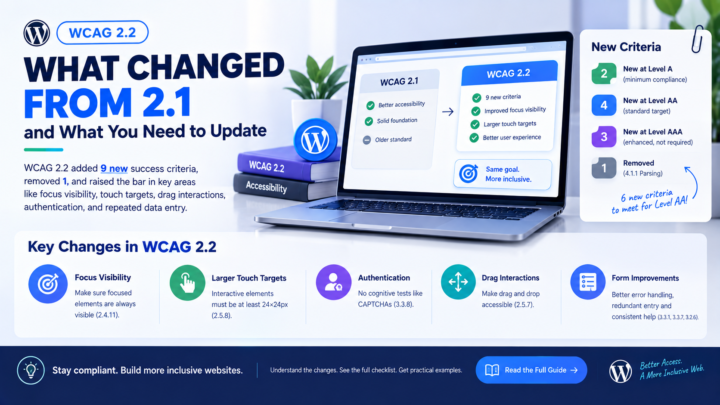
Check the relevant WCAG success criterion. For form labels, check 1.3.1 and 4.1.2. For headings, check 1.3.1. For focus management, check 2.4.3 and 2.4.7. For dynamic content, check 4.1.3. The WCAG 2.2 Checklist maps every criterion to specific test procedures.
Start Testing Today
You don’t need specialized hardware or expensive software. If you’re on Windows, download NVDA. If you’re on macOS, press Cmd+F5. Pick one page on your site – the homepage or a key form – and run through the testing workflow above. You’ll find issues that no automated scanner would catch.
The goal isn’t to replicate how a blind user navigates. The goal is to verify that the information your interface communicates visually is also communicated programmatically – through proper semantics, labels, roles, states, and live regions. That’s what WCAG requires, and screen reader testing is how you prove it works.
For the full set of WCAG requirements your site needs to meet, use the website accessibility checklist for developers. For checking contrast on focus indicators and UI elements, run them through the Contrast Checker.
This guide covers NVDA 2024.x and VoiceOver on macOS Sequoia and iOS 18. Screen reader behavior may differ slightly across versions. Always test with the latest stable versions for the most accurate results.