WCAG 2.2: What Changed from 2.1 and What You Need to Update
 By Admin
12 min read
By Admin
12 min read 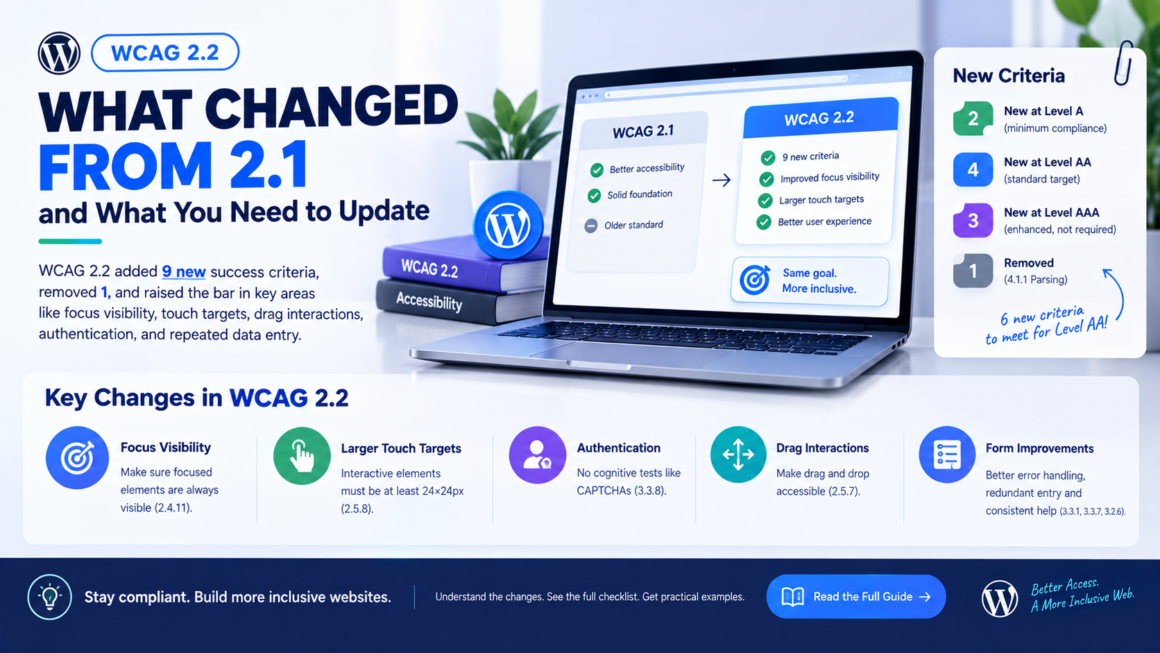
WCAG 2.2 became a W3C Recommendation in October 2023, replacing WCAG 2.1 as the current standard. If your site targets WCAG 2.1 Level AA, you already meet most of the requirements. But WCAG 2.2 added nine new success criteria, removed one, and raised the bar in areas that catch most sites off guard: focus visibility, touch target sizes, drag interactions, authentication, and repeated data entry.
This guide breaks down every change between WCAG 2.1 and 2.2, explains what each new criterion actually requires in plain language, shows you how to test for it, and tells you what to fix first.
The Short Version: What Changed
WCAG 2.2 added nine new success criteria and removed one:
- 2 new at Level A (minimum compliance)
- 4 new at Level AA (the standard most organizations target)
- 3 new at Level AAA (enhanced, not typically required)
- 1 removed (4.1.1 Parsing, retired as obsolete)
If you’re targeting Level AA, you have six new criteria to meet. If you were already conformant to WCAG 2.1 Level AA, everything you’ve done still counts. You just need to address the additions.
The New Level A Criteria
These are the minimum. Every site claiming any level of WCAG conformance must meet these.
3.2.6 Consistent Help (Level A)
What it requires: If your site offers help mechanisms – a contact phone number, a chat widget, a FAQ link, an email address – they must appear in the same relative location on every page.
Why it matters: A user who finds the “Contact Us” link in the footer on the homepage shouldn’t have to hunt for it in a sidebar on the checkout page. Consistency reduces cognitive load, especially for users with cognitive disabilities who rely on predictable page structure.
What to check:
- Is your help link, chat widget, or support phone number in the same position across all pages?
- If you use a contact form, does the link to it appear consistently in the header, footer, or sidebar?
- Does the order of help mechanisms stay the same? (If it’s Phone, then Email, then Chat on one page, it shouldn’t be Chat, then Phone, then Email on another.)
How to fix it: Pick one location for your help mechanisms (footer is the most common) and keep them there site-wide. If you use a floating chat widget, it should appear on every page, not just the homepage.
3.3.7 Redundant Entry (Level A)
What it requires: If the user already entered information earlier in a process, don’t make them type it again. Auto-populate it, or let them select it from what they previously provided.
Why it matters: Re-entering data is frustrating for everyone, but it’s a genuine barrier for users with motor impairments (typing is physically difficult), cognitive disabilities (remembering what they entered three steps ago), and screen reader users (navigating a duplicate form is twice the work).
What to check:
- Does your multi-step checkout ask for the same address twice without a “same as billing” option?
- Does your registration flow ask for the email on step 1 and again on step 3?
- After a form validation error, does the page lose data the user already entered?
Exceptions: Re-entry is allowed when security requires it (like re-entering a password to confirm) or when the previously entered data is no longer valid.
How to fix it: Add autocomplete attributes to form fields so browsers can auto-fill. In multi-step flows, store submitted data in the session and pre-populate later steps. Add “same as above” checkboxes for duplicate address fields.
The New Level AA Criteria
These are the ones that matter most. Level AA is the standard target for ADA compliance, EAA conformance, Section 508, and most organizational accessibility policies.
2.4.11 Focus Not Obscured (Minimum) (Level AA)
What it requires: When a UI component receives keyboard focus, it can’t be completely hidden behind other content. Partially visible is acceptable at this level – but fully hidden is a failure.
Why it matters: Keyboard users navigate by tabbing between elements. If the focused element is hidden behind a sticky header, a cookie banner, or a modal overlay, the user has no idea where they are on the page.
Common failures:
- A sticky navigation bar covers focused elements as the user tabs down the page.
- A cookie consent banner sits at the bottom of the viewport and hides focused footer links.
- A chat widget overlaps interactive elements in the bottom-right corner.
How to test it: Tab through your entire page with the keyboard. At every stop, check: can you see the focused element? If a sticky header or footer hides it completely, that’s a failure.
How to fix it: Add scroll-padding-top (or bottom) to account for sticky elements:
html {
  scroll-padding-top: 80px; /* height of your sticky header */
  scroll-padding-bottom: 60px; /* height of your cookie banner */
}
For cookie banners, dismiss them on acceptance (don’t leave them persistent). For chat widgets, make sure they don’t overlap the tab order of page content.
2.5.7 Dragging Movements (Level AA)
What it requires: Any functionality that uses dragging (drag-and-drop) must also be operable with a single pointer without dragging. In other words, if users can drag something, they must also be able to achieve the same result with clicks or taps.
Why it matters: Dragging requires fine motor control that many users don’t have. Users with tremors, limited dexterity, or those using head pointers, eye tracking, or switch devices can’t perform drag gestures.
Common failures:
- A sortable list that only allows drag-and-drop reordering with no up/down buttons.
- A Kanban board where cards can only be moved between columns by dragging.
- A slider control that only works by dragging the handle with no click-to-set or arrow key support.
- A file upload that only accepts drag-and-drop with no “Browse files” button.
How to fix it: Add alternative controls alongside drag interactions:
- Sortable lists: add up/down arrow buttons for each item.
- Kanban boards: add a “Move to” dropdown or context menu.
- Sliders: support click-to-set on the track and arrow key increments.
- File uploads: always include a standard file input button.
2.5.8 Target Size (Minimum) (Level AA)
What it requires: Interactive targets (buttons, links, form controls) must be at least 24 x 24 CSS pixels, or have sufficient spacing from adjacent targets so the combined target and spacing reaches 24px.
Why it matters: Small touch targets cause mis-taps for everyone, but they’re a genuine barrier for users with motor impairments, tremors, or limited fine motor control. The 24px minimum is smaller than the 44px recommended by Apple and Google’s design guidelines, but it catches the worst offenders.
Exceptions:
- Inline text links within a paragraph are exempt (they’re sized by the font).
- Targets where the size is determined by the user agent (native checkboxes, for example).
- Targets where a specific size is legally or practically essential.
- Targets where another control on the same page performs the same function and meets the size requirement.
What to check:
- Are your icon-only buttons (close, menu, social media) at least 24x24px?
- Do closely spaced navigation links have enough padding between them?
- Are mobile tap targets large enough? (Test on an actual phone, not just a resized browser.)
How to fix it:
button, a, input[type="checkbox"], input[type="radio"] {
  min-width: 24px;
  min-height: 24px;
}

/* Better: aim for 44px on touch interfaces */
@media (pointer: coarse) {
  button, a, [role="button"] {
    min-height: 44px;
    min-width: 44px;
  }
}
For inline links that are exempt, make sure they aren’t the only way to perform an action. For icon buttons, the clickable area matters, not just the visible icon – use padding to increase the hit area.
3.3.8 Accessible Authentication (Minimum) (Level AA)
What it requires: A login process must not require a cognitive function test unless an alternative is provided. Cognitive function tests include: remembering a password (without paste), solving a puzzle CAPTCHA, transcribing text from an image, and recognizing specific objects in photos.
What it allows: Object recognition (like “click all the traffic lights”) is permitted at Level AA as an alternative, as long as users can also authenticate another way. Level AAA (3.3.9) removes even that exception.
Why it matters: Cognitive function tests exclude users with memory impairments, learning disabilities, and cognitive fatigue. They also frustrate users with visual impairments who can’t solve image-based challenges.
Common failures:
- Password fields that block paste (breaking password managers).
- CAPTCHA with no accessible alternative (no audio option, no email verification fallback).
- Login flows that require memorizing and typing a one-time code from an SMS when copy-paste is blocked.
How to fix it:
- Allow paste in all authentication fields.
- Support password managers (don’t override autocomplete).
- If you use CAPTCHA, provide an accessible alternative: audio CAPTCHA, email verification, or a login link.
- Support passkeys and WebAuthn where possible – biometric login bypasses cognitive tests entirely.
The New Level AAA Criteria
Level AAA is not typically required for compliance, but these criteria represent best practices worth aiming for.
2.4.12 Focus Not Obscured (Enhanced) (Level AAA)
The stricter version of 2.4.11. At Level AAA, no part of the focused element can be hidden by author-created content. At Level AA, partial visibility was acceptable. Here, the entire focused element must be fully visible.
2.4.13 Focus Appearance (Level AAA)
What it requires: Focus indicators must meet specific size and contrast requirements:
- The focus indicator area must be at least as large as a 2px thick perimeter of the unfocused element.
- The focus indicator must have at least 3:1 contrast between the focused and unfocused states.
This goes beyond 2.4.7 (Focus Visible, Level AA) by specifying how prominent the focus indicator must be, not just that one exists.
Best practice even at Level AA:
:focus-visible {
  outline: 2px solid #0056b3;
  outline-offset: 2px;
}
3.3.9 Accessible Authentication (Enhanced) (Level AAA)
The stricter version of 3.3.8. At Level AAA, even object recognition tests (like “click all the traffic lights”) are not allowed. Authentication must work entirely without cognitive function tests – only password managers, biometrics, passkeys, or device-based authentication qualify.
The Removed Criterion: 4.1.1 Parsing
WCAG 2.2 retired 4.1.1 Parsing, which required valid HTML: no duplicate IDs, proper nesting, complete start and end tags, and no duplicate attributes.
Why it was removed: Modern browsers and assistive technologies have become extremely good at handling malformed markup. The issues 4.1.1 was designed to prevent – screen readers crashing on invalid HTML, browsers rendering broken layouts from unclosed tags – simply don’t happen anymore. Browsers auto-correct most markup errors before the accessibility tree is built.
Does this mean you can write sloppy HTML? No. Valid HTML is still important. Other success criteria still require proper structure:
- 1.3.1 Info and Relationships still requires correct semantic markup.
- 4.1.2 Name, Role, Value still requires proper ARIA usage.
- Duplicate IDs still break
aria-describedby,aria-labelledby, and label associations.
The removal just means that generic HTML validation errors (an unclosed <div>, a self-closing <br/> vs <br>) aren’t accessibility failures on their own anymore.
What to Update First: Priority Order
If you’re moving from WCAG 2.1 to 2.2 conformance, here’s the order that addresses the highest-risk issues first:
1. Target sizes (2.5.8) – Audit all interactive elements for the 24px minimum. This is the most common failure across sites, and it directly causes usability problems. Use the WCAG 2.2 Checklist to track your audit.
2. Accessible authentication (3.3.8) – Check that paste works in password fields, password managers aren’t blocked, and CAPTCHAs have accessible alternatives. This is a quick fix with high impact.
3. Focus not obscured (2.4.11) – Tab through every page and verify focused elements aren’t hidden behind sticky headers, cookie banners, or chat widgets. Fix with scroll-padding and proper z-index management.
4. Dragging movements (2.5.7) – Audit for any drag-only interactions and add click/tap alternatives. Common in dashboards, kanban boards, sliders, and sortable lists.
5. Redundant entry (3.3.7) – Review multi-step forms for duplicate data entry. Add auto-population and “same as” checkboxes. This is a Level A criterion, so it’s required for any conformance level.
6. Consistent help (3.2.6) – Verify help mechanisms appear in the same location across all pages. Usually a quick template fix.
Testing for WCAG 2.2 Compliance
Automated testing catches some of it
Automated scanners can detect:
- Target sizes below 24px (most modern scanners check this).
- Missing focus indicators (partial detection).
- Inconsistent help placement (limited detection).
- Paste blocked in password fields (some scanners check this).
Manual testing catches the rest
You need manual testing for:
- Focus not obscured – tab through pages and visually verify.
- Dragging movements – try every drag interaction with keyboard only.
- Redundant entry – walk through multi-step forms and check for duplicate fields.
- Accessible authentication – test the full login flow with a password manager.
- Consistent help – compare help mechanism placement across 5-10 representative pages.
Screen reader testing validates everything
Test with at least one screen reader (NVDA on Windows is free) to verify that new interactive patterns – especially drag alternatives and authentication flows – work correctly with assistive technology.
For target size testing, use your browser’s DevTools to measure element dimensions. In Chrome: right-click the element, Inspect, look at the computed width and height in the Computed panel. Check the target size requirements guide for detailed testing methods.
WCAG 2.2 vs 2.1 FAQ
Is WCAG 2.2 backwards compatible with 2.1?
Yes. WCAG 2.2 includes everything from 2.1 (minus 4.1.1 Parsing). A site that conforms to WCAG 2.2 automatically conforms to 2.1. A site conforming to 2.1 needs to address the nine new criteria to claim 2.2 conformance.
Do I need to update my VPAT if I was conformant to 2.1?
If your VPAT claims WCAG 2.1 conformance, it’s still valid for 2.1. But if your customers or procurement requirements ask for WCAG 2.2, you’ll need to update it to cover the new criteria. Use the Free VPAT Generator to create an updated version.
Does the ADA require WCAG 2.2?
ADA Title II (state and local government) specifically references WCAG 2.1 Level AA in its 2024 rule, with compliance deadlines in 2026-2027. Title III (private businesses) has no formal web accessibility rule but courts have consistently used WCAG 2.1 AA as the de facto standard. While 2.2 is the current W3C Recommendation, legal requirements haven’t caught up yet – but updating to 2.2 puts you ahead of the curve.
Does the European Accessibility Act require WCAG 2.2?
The EAA references EN 301 549, which adopted WCAG 2.1 Level AA. An update to reference WCAG 2.2 is expected but hasn’t been formally adopted yet. Meeting 2.2 exceeds the current requirement.
What about WCAG 3.0?
WCAG 3.0 (W3C Accessibility Guidelines) is still in draft and years from becoming a standard. It will be a fundamentally different approach – new scoring system, new structure, new terminology. For now, WCAG 2.2 is the standard to build against. Don’t wait for 3.0.
Is 4.1.1 Parsing removal retroactive?
Yes. When WCAG 2.2 retired 4.1.1, it was also retroactively removed from WCAG 2.1 and 2.0 conformance requirements. If you previously failed on 4.1.1, that failure no longer counts against you at any version.
Start Your WCAG 2.2 Update
If you’re already at WCAG 2.1 Level AA, the jump to 2.2 is manageable. The six new Level AA criteria target specific, testable requirements – not broad redesigns. Start with target sizes and authentication (the highest-failure areas), work through focus and drag interactions, and finish with redundant entry and consistent help.
Use the WCAG 2.2 Checklist to track every success criterion as you audit. For checking contrast on your focus indicators and UI elements, run them through the Contrast Checker. For a full accessibility audit beyond WCAG 2.2 specifics, start with the website accessibility checklist for developers.
WCAG 2.2 became a W3C Recommendation on October 5, 2023. Legal frameworks referencing WCAG (ADA Title II, Section 508, EAA/EN 301 549) may still cite WCAG 2.1 – check the specific regulation that applies to your organization for the required version.