Heading Structure for Accessibility: H1–H6 Best Practices

Headings are more than large, bold text on a webpage. A well-planned heading structure gives your content a logical organization that helps people understand, navigate, and interact with your website.
For users who rely on screen readers, headings can act like a table of contents, allowing them to quickly jump between sections. Search engines can also use the structure and content of headings to better understand the topics covered on a page.
In this guide, you’ll learn how to use H1, H2, H3, H4, H5, and H6 headings correctly, common heading mistakes to avoid, and how a logical heading hierarchy can support both accessibility and SEO.
What Is Heading Structure?
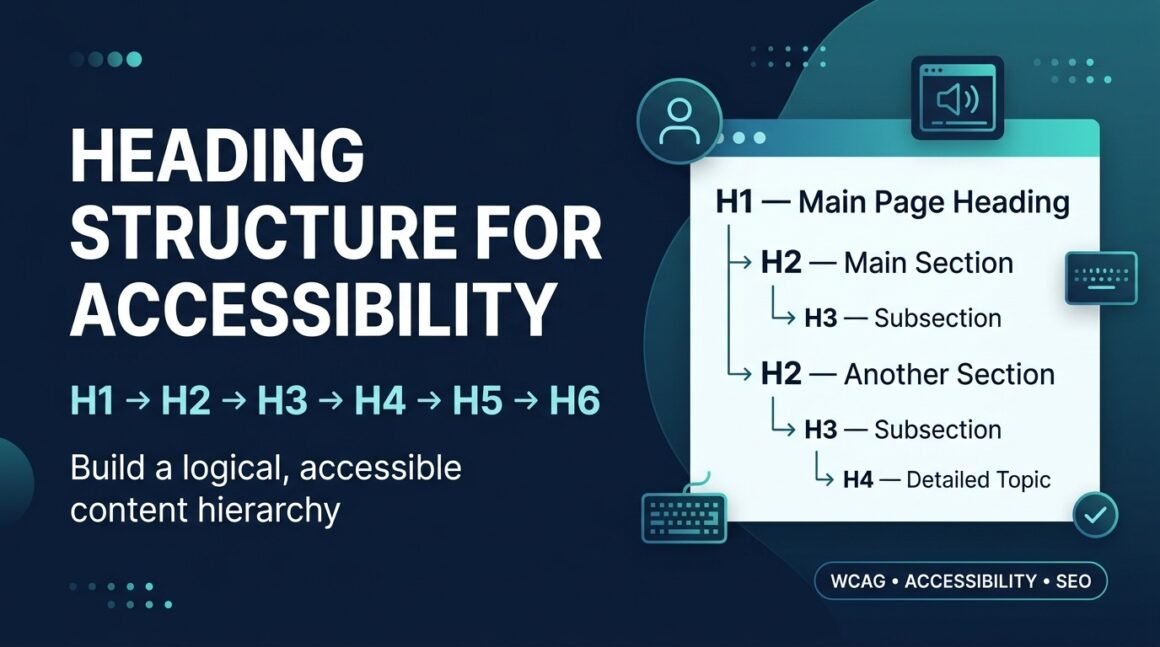
Heading structure is the hierarchical organization of headings on a webpage. HTML provides six heading levels: H1, H2, H3, H4, H5, and H6.
Example HTML:
<h1>Page Title</h1>
<h2>Main Section</h2>
<h3>Subsection</h3>
<h4>Sub-subsection</h4>
<h5>Additional subsection</h5>
<h6>Lowest-level heading</h6>
Think of headings like the outline of a document.
H1: Heading Structure for Accessibility
H2: Why Heading Structure Matters
H2: Understanding H1–H6
H3: What Is H1?
H3: What Is H2?
H3: What Is H3?
H2: Heading Best Practices
H3: Keep Headings Descriptive
H3: Maintain Logical Order
Why Heading Structure Matters for Accessibility
A logical heading structure makes content easier to navigate for everyone, but it is particularly important for people who use assistive technologies.
Screen reader users can often navigate a webpage by jumping from heading to heading instead of reading every paragraph sequentially. Properly structured headings allow users to navigate directly to relevant sections and understand the organization of the content.
Proper headings help users:
- Understand the structure of a page.
- Quickly find specific sections.
- Navigate long articles more efficiently.
- Understand relationships between topics.
- Scan content without reading every paragraph.
- Navigate using assistive technology.
Headings therefore aren’t simply a visual design element—they provide meaningful document structure.
Understanding H1–H6 Headings
H1: The Main Page Heading
The H1 normally identifies the primary topic of the page. For this article: <h1>Heading Structure for Accessibility: H1–H6 Best Practices</h1>.
- Use a clear and descriptive title.
- Make it relevant to the page’s primary topic.
- Avoid stuffing keywords into the heading.
- Don’t use an H1 simply because you want larger text.
- Ideally use one clear H1 for the page.
H2: Major Sections
H2 headings divide the page into its major topics. Each H2 represents a major section underneath the H1.
H3: Subsections Within an H2
Use H3 headings when a major section needs additional subsections. These H3 headings are children of the H2 section.
H4: Subsections Within an H3
H4 can be useful for more detailed content. The H4 headings belong to the H3 section.
H5 and H6
H5 and H6 are rarely needed for ordinary blog posts. They can be useful for very complex documents where multiple levels of hierarchy are genuinely necessary. Don’t use H5 or H6 simply because you want smaller text.
How to Structure H1, H2, and H3 Headings
For most blog posts, you can create a strong structure using only H1, H2, and H3.
H1: Heading Structure for Accessibility
H2: What Is Heading Structure?
H2: Why Heading Structure Matters
H3: Benefits for Screen Reader Users
H3: Benefits for Other Users
H2: Understanding H1–H6
H3: H1
H3: H2
H3: H3
H2: Best Practices
H3: Use Descriptive Headings
H3: Keep Headings in Logical Order
H2: Common Mistakes
H2: How to Check Heading Structure
H2: FAQ
H4, H5, and H6: When Should You Use Them?
Don’t feel obligated to use every heading level. You don’t need to have H1, H2, H3, H4, H5, and H6 on every page.
Instead, use the heading level that accurately represents the relationship between sections.
H1: Web Accessibility Testing
H2: Automated Testing
H3: Accessibility Scanners
H3: Browser Extensions
H2: Manual Testing
H3: Keyboard Testing
H3: Screen Reader Testing
The purpose isn’t to use all six levels. The purpose is to create a logical hierarchy.
Heading Structure Example
Here’s a practical example for an accessibility blog post.
Correct structure
H1: How to Make Your Website More Accessible
H2: What Is Web Accessibility?
H2: Why Accessibility Matters
H3: Benefits for Users
H3: Benefits for Businesses
H2: Accessibility Best Practices
H3: Improve Color Contrast
H3: Add Alternative Text
H3: Use Keyboard-Friendly Navigation
H2: How to Test Accessibility
H3: Automated Testing
H3: Manual Testing
Notice how every H3 belongs to an H2.
Good vs. Bad Heading Structure
Good example
H1: Web Accessibility Guide
H2: What Is Web Accessibility?
H2: Why Accessibility Matters
H2: Accessibility Best Practices
H3: Keyboard Navigation
H3: Color Contrast
H3: Alternative Text
H2: How to Test Your Website
Bad example
H1: Web Accessibility Guide
H4: What Is Web Accessibility?
H2: Why Accessibility Matters
H5: Accessibility Best Practices
H3: Keyboard Navigation
H6: Color Contrast
The problem isn’t the visual appearance. The problem is that the structural relationships don’t make sense. A screen reader user navigating the headings may have difficulty understanding how the sections relate to one another.
Best Practices for Accessible Headings
1. Use headings to create structure
Don’t use headings simply because you want larger or smaller text. Use CSS for visual styling.
2. Keep heading levels in logical order
A simple hierarchy is H1 → H2 → H3 → H4. Avoid unnecessary jumps such as H1 → H4.
3. Make headings descriptive
A user should be able to understand what a section contains by reading its heading. Prefer ‘How to Test Your Website for Accessibility’ over ‘More Information.’
4. Keep headings concise
Headings don’t need to contain every detail. Shorter headings are easier to scan and navigate.
5. Don’t use keywords unnaturally
Write headings for people first. Avoid keyword lists and keyword stuffing.
6. Keep the visual design separate from heading hierarchy
Use CSS to change appearance rather than choosing an incorrect semantic heading level.
7. Use semantic HTML
Whenever possible, use actual HTML heading elements: <h1> through <h6>, rather than generic elements styled to look like headings.
Heading Structure and SEO
Heading structure can also support SEO—but it’s important to understand what headings actually do.
Headings help organize your content and make the main topics and subtopics easier to understand. Google recommends descriptive headings and logically structured content.
| SEO Benefit | How It Helps |
| Better content organization | Makes topics and subtopics easier to understand. |
| Improved readability | Visitors can scan your content faster. |
| Clear topical structure | Helps communicate what different sections cover. |
| Better user experience | Makes long pages easier to navigate. |
| Stronger accessibility | Screen reader users can navigate sections efficiently. |
Do Headings Directly Improve SEO Rankings?
Not necessarily. Using an H1 or H2 correctly doesn’t guarantee higher rankings.
The bigger SEO benefit comes from creating content that is well organized, relevant to the searcher’s intent, easy to understand, comprehensive, helpful, accessible, and properly structured.
Good heading structure supports those goals. Instead of asking, ‘How many keywords should I put in my H2 headings?’ ask, ‘Can someone quickly understand what this section is about?’
Common Heading Mistakes to Avoid
Using headings for styling
Don’t use H2 because you want text to look bigger. Use CSS for visual styling.
Skipping heading levels unnecessarily
Avoid H1 → H2 → H4 when H4 is actually a subsection of H2. Use H3 instead.
Using multiple unrelated H1 headings
For most pages, one clear H1 is the simplest and most understandable approach.
Making every heading an H2
If sections contain clear subsections, use H3 to communicate that relationship.
Writing vague headings
Avoid headings such as More, Details, Information, Things to Know, Other, or Resources when a more descriptive heading is possible.
Hiding headings visually without a reason
If a heading is necessary to communicate structure, don’t remove it simply because you don’t like how it looks. Use appropriate CSS instead.
How to Check Your Heading Structure
1. Browser developer tools
Right-click your page and choose Inspect. Search for H1, H2, H3, H4, H5, and H6, then check whether the hierarchy makes sense.
2. Accessibility testing tools
Automated accessibility testing tools can identify structural issues and help you investigate heading problems. However, automated testing shouldn’t replace manual testing.
3. Screen reader testing
One of the best ways to understand heading accessibility is to experience the page using a screen reader. Navigate through the headings and ask whether the page structure makes sense, whether important sections are easy to find, whether headings are descriptive, and whether heading levels represent the relationships between sections.
Heading Structure Checklist
Accessibility
- The page has a clear main heading.
- Headings describe the content that follows.
- Heading levels represent the content hierarchy.
- Heading levels aren’t skipped unnecessarily.
- Headings aren’t being used only for visual styling.
- Long content is divided into logical sections.
- The structure makes sense when read without visual styling.
SEO
- The H1 clearly describes the main topic.
- Important sections use descriptive headings.
- Keywords appear naturally where relevant.
- Headings match the content underneath them.
- Headings aren’t stuffed with keywords.
- The content satisfies the user’s search intent.
Frequently asked
A typical structure starts with an H1 for the main page topic, followed by H2 headings for major sections and H3 headings for subsections. Deeper levels such as H4–H6 should only be used when the content genuinely requires them.
Using one clear H1 is a straightforward best practice because it gives the page a single, unambiguous primary heading. More importantly, the heading structure should accurately represent the content hierarchy.
It’s best to avoid unnecessary skipped levels because they can make the document structure harder to understand. Use H3 when the content is a subsection of an H2.
Headings help organize content and communicate topics and subtopics, which can contribute to a clearer, more useful page. However, simply adding keywords to H1–H6 tags isn’t a shortcut to higher rankings.
Yes. Properly marked and logically structured headings help users of assistive technologies navigate and understand webpage content.
Use them only when your content requires additional levels of hierarchy. Most blog posts can be structured effectively with H1, H2, and H3.