How to Secure wp-config.php: The Most Important File on Your Server
 By Admin
12 min read
By Admin
12 min read 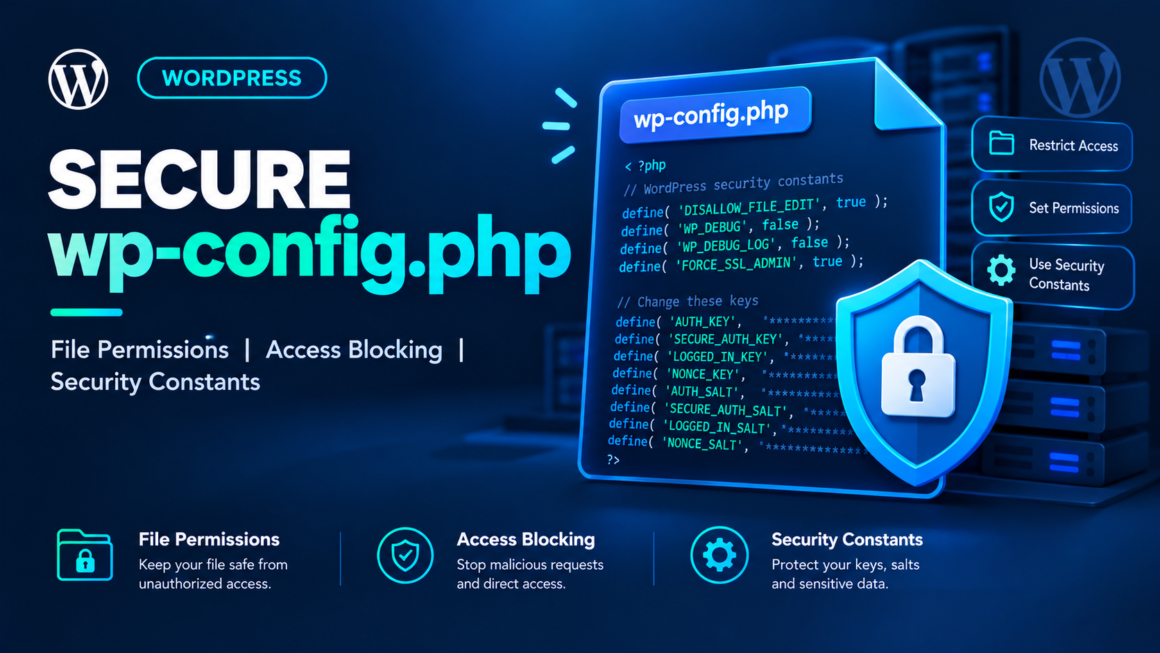
Your wp-config.php file contains your database username and password in plain text. It holds your authentication keys and salts. It controls debug mode, table prefixes, and core update behavior. If an attacker reads this single file, they have everything they need to take over your database, hijack every user session, and own your entire site.
And on most WordPress installations, this file is sitting in the web root with default permissions, accessible to any script running on the server.
This guide covers what wp-config.php actually contains, why it’s the highest-value target on your server, and the specific steps to lock it down – file permissions, access blocking, security constants, credential protection, and the optional move outside the web root.
What’s Inside wp-config.php (and Why Attackers Want It)
Every WordPress installation has a wp-config.php file in the site root. It’s created during the WordPress installation process and contains:
Database credentials – the hostname, database name, username, and password that WordPress uses to connect to MySQL/MariaDB. An attacker with these credentials can read, modify, or delete every table in your database – posts, users, payment records, everything.
define( 'DB_NAME', 'wordpress_db' );
define( 'DB_USER', 'wp_admin' );
define( 'DB_PASSWORD', 'your-database-password' );
define( 'DB_HOST', 'localhost' );
Authentication keys and salts – eight cryptographic constants that WordPress uses to sign cookies and secure user sessions. If an attacker knows these values, they can forge authentication cookies for any user account, including administrators.
define( 'AUTH_KEY',         'unique-random-string' );
define( 'SECURE_AUTH_KEY',  'unique-random-string' );
define( 'LOGGED_IN_KEY',    'unique-random-string' );
define( 'NONCE_KEY',        'unique-random-string' );
define( 'AUTH_SALT',        'unique-random-string' );
define( 'SECURE_AUTH_SALT', 'unique-random-string' );
define( 'LOGGED_IN_SALT',   'unique-random-string' );
define( 'NONCE_SALT',       'unique-random-string' );
Table prefix – the $table_prefix variable (default: wp_). Knowing the prefix makes SQL injection attacks easier because the attacker knows the exact table names.
Debug settings, file system constants, and other configuration that reveals server paths, error handling behavior, and how WordPress operates internally.
In short: wp-config.php is the master key to your WordPress installation. Every security measure in this guide exists to keep that file out of the wrong hands.
Step 1: Set Correct File Permissions
File permissions control who on the server can read, write, or execute a file. The goal for wp-config.php is simple: only the web server process should be able to read it. Nobody should be able to write to it through the web.
The right permission setting
# Most secure - owner read/write only
chmod 600 wp-config.php

# If your server needs group read access (some shared hosting)
chmod 640 wp-config.php
Start with 600 (owner read/write only). If your site throws a 500 error, your server’s PHP process runs as a different user than the file owner – switch to 640. Never use 644 (world-readable) or 777 (world-readable-writable-executable).
Verify the permissions
ls -l wp-config.php
# Expected output: -rw------- (600) or -rw-r----- (640)
If you see -rw-r--r-- (644), the file is readable by any process on the server. On shared hosting, this means other users on the same server could potentially read your database credentials.
Set correct permissions for other WordPress files too
While you’re at it, set proper permissions across your installation:
# All directories: 755
find /path/to/wordpress/ -type d -exec chmod 755 {} \;

# All files: 644
find /path/to/wordpress/ -type f -exec chmod 644 {} \;

# wp-config.php: 600 (more restrictive than other files)
chmod 600 wp-config.php
For a complete guide to WordPress file permissions, see the WordPress file permissions guide.
Step 2: Block Direct HTTP Access
Even with correct file permissions, a misconfigured server or a vulnerability in another script could expose wp-config.php to web requests. Block direct access at the server level as a second layer of defense.
Apache (.htaccess)
Add this to the .htaccess file in your WordPress root directory, before the WordPress rewrite rules:
<Files wp-config.php>
    Require all denied
</Files>
For older Apache versions (2.2 and below):
<Files wp-config.php>
    Order allow,deny
    Deny from all
</Files>
Nginx
Add this to your server block configuration:
location = /wp-config.php {
    deny all;
    return 403;
}
Verify it works
curl -s -o /dev/null -w "%{http_code}\n" https://yourdomain.com/wp-config.php
# Expected: 403 (Forbidden)
If you get a 200 response or see PHP source code, the blocking rule isn’t working. If you see a blank page, that’s fine – PHP executed but produced no output, which is the default behavior.
Step 3: Add Security Constants
WordPress supports several constants in wp-config.php that harden your installation. Add these above the line that says /* That's all, stop editing! */:
Disable the file editor
The WordPress dashboard includes a built-in code editor (Appearance > Theme File Editor, Plugins > Plugin File Editor) that lets administrators edit PHP files directly from the browser. If an attacker gains admin access, this editor gives them the ability to inject malware into any theme or plugin file.
// Disable the theme and plugin file editor in wp-admin
define( 'DISALLOW_FILE_EDIT', true );
This removes the editor entirely from the dashboard. You can still edit files via FTP/SFTP or WP-CLI.
The stricter option: block all file modifications
// Block plugin/theme installs, updates, and editing from the dashboard
define( 'DISALLOW_FILE_MODS', true );
This blocks everything DISALLOW_FILE_EDIT blocks, plus it prevents installing and updating plugins and themes from the dashboard. Use this only if you manage updates through deployment pipelines, WP-CLI, or manual FTP. Otherwise, you’ll block your own ability to update plugins.
Force HTTPS for the admin area
// Require SSL for the WordPress admin and login
define( 'FORCE_SSL_ADMIN', true );
This ensures the login page and all admin pages load over HTTPS, protecting credentials in transit. Your site must have an SSL certificate installed for this to work.
Control automatic updates
// Allow minor (security) updates automatically, but not major versions
define( 'WP_AUTO_UPDATE_CORE', 'minor' );
Options:
true– all core updates install automatically (minor and major).'minor'– only security and maintenance releases install automatically (recommended).false– no automatic updates (only if you have a manual update process).
Disable debug output on production
// Never display errors to visitors on a live site
define( 'WP_DEBUG', false );
define( 'WP_DEBUG_DISPLAY', false );
define( 'WP_DEBUG_LOG', false );
If WP_DEBUG and WP_DEBUG_DISPLAY are both true, PHP errors display on the front end – revealing file paths, function names, and database queries to anyone visiting the site. On production, always set both to false. If you need to debug, log errors to a file instead:
define( 'WP_DEBUG', true );
define( 'WP_DEBUG_DISPLAY', false );
define( 'WP_DEBUG_LOG', true ); // Logs to wp-content/debug.log
And block access to that log file:
<Files debug.log>
    Require all denied
</Files>
Limit post revisions
// Keep only 5 revisions per post (reduces database bloat)
define( 'WP_POST_REVISIONS', 5 );
Not strictly a security measure, but a bloated database with thousands of revisions is slower to back up and restore after an incident.
Step 4: Regenerate Security Keys and Salts
The eight authentication keys and salts in wp-config.php are the cryptographic backbone of WordPress session management. If these values have ever been exposed – through a backup file left in the web root, a compromised server, or a leaked Git repository – they need to be regenerated immediately.
Generate fresh keys
Visit the official WordPress salt generator:
https://api.wordpress.org/secret-key/1.1/salt/
This returns eight lines of PHP with unique random values. Copy them and replace the existing keys and salts in your wp-config.php.
Or generate them from the command line with WP-CLI:
wp config shuffle-salts
What happens when you regenerate
Regenerating keys and salts invalidates every active session. Every logged-in user (including you) will be logged out and will need to sign in again. This is a feature, not a side effect – if an attacker has stolen session cookies, regenerating salts makes those cookies useless.
When to regenerate
- After any security incident or suspected compromise.
- If you discover backup files (
.bak,.old,.swp, or.zip) ofwp-config.phpwere accessible from the web. - If your
wp-config.phpwas ever committed to a public Git repository. - As a precaution during routine security maintenance (quarterly is reasonable).
Step 5: Move wp-config.php Above the Web Root (Optional)
WordPress has a built-in feature that most site owners don’t know about: it automatically checks for wp-config.php one directory above the web root. This means you can move the file outside the publicly accessible directory entirely.
How it works
If your WordPress installation is at /var/www/html/, you can move wp-config.php to /var/www/wp-config.php. WordPress will find it automatically – no code changes needed.
# Move the file one level up
mv /var/www/html/wp-config.php /var/www/wp-config.php

# Set permissions on the new location
chmod 600 /var/www/wp-config.php
Benefits
- The file is completely outside the web root, so it can’t be requested via HTTP at all – no
.htaccessor nginx rule needed. - Even if a vulnerability allows directory traversal within the web root, the file isn’t there to find.
When NOT to do this
- Shared hosting where you don’t control the directory above your web root. Other sites on the same server might share that parent directory.
- Multiple WordPress installations in the same parent directory. WordPress looks for the first
wp-config.phpit finds, and two installations sharing a parent could conflict. - Managed hosting platforms (like WP Engine, Kinsta, Flywheel) that have their own directory structure and may not support this.
- Docker/container setups where the file system is tightly scoped.
If you’re on a VPS or dedicated server with a single WordPress site, this is a strong additional layer of protection. On shared hosting, focus on the file permissions and access blocking steps instead.
Step 6: Protect wp-config.php Backups
Attackers don’t just target your live wp-config.php – they scan for backup copies that careless processes leave behind. Automated scanners check for:
wp-config.php.bakwp-config.php.oldwp-config.php.origwp-config.php~wp-config.php.swp(Vim swap files)wp-config.php.savewp-config.txtwp-config.zip
If any of these exist in your web root, they may be served as plain text by your web server – exposing your database credentials in the browser.
Clean up backup files
# Find any wp-config backup files in the web root
find /path/to/wordpress/ -name "wp-config*" -not -name "wp-config.php" -type f
Delete anything this finds. Never rename wp-config.php by appending an extension like .bak or .old – if the file no longer ends in .php, the server may serve it as plain text instead of executing it.
Block access to all wp-config variants
Add this to .htaccess to block requests for any file starting with “wp-config”:
<FilesMatch "^wp-config">
    Require all denied
</FilesMatch>
This blocks wp-config.php, wp-config.php.bak, wp-config-sample.php, and any other variant.
Delete wp-config-sample.php
The sample configuration file ships with every WordPress installation and reveals the exact structure and comments of a default wp-config.php. It doesn’t contain real credentials, but it gives attackers a template for what to look for. Delete it:
rm wp-config-sample.php
Step 7: Change the Default Table Prefix
WordPress uses wp_ as the default table prefix. Changing it during installation makes automated SQL injection attacks slightly harder, because the attacker can’t assume table names like wp_users or wp_options.
For new installations
During the WordPress installation wizard, change the table prefix from wp_ to something unique:
$table_prefix = 'xk7m_';
Use letters, numbers, and underscores only. Keep it short.
For existing installations
Changing the table prefix on an existing site requires renaming every table in the database and updating references in the wp_options and wp_usermeta tables. This is risky on a live site – back up your database first and test thoroughly. A plugin like Brozzme DB Prefix can handle the migration, or use WP-CLI with careful SQL queries.
This is a defense-in-depth measure, not a primary protection. It won’t stop a targeted attacker, but it breaks automated scripts that hardcode the default prefix.
Quick-Reference Security Checklist
Run through this checklist for every WordPress site you manage:
File permissions: wp-config.php is set to 600 (or 640 if the server requires group read). All other files are 644. All directories are 755. No files or directories are set to 777.
HTTP access blocked: Direct requests to wp-config.php return 403. Backup variants (.bak, .old, .swp) are blocked or deleted. wp-config-sample.php is deleted.
Security constants set: DISALLOW_FILE_EDIT is true. FORCE_SSL_ADMIN is true. WP_DEBUG is false on production. WP_DEBUG_DISPLAY is false. WP_AUTO_UPDATE_CORE is set to at least 'minor'.
Keys and salts: All eight authentication keys and salts are set to unique random values (not the default placeholders). They’ve been regenerated after any security incident.
Backups and versions: No backup copies of wp-config.php exist in the web root. No .bak, .old, .swp, or .zip variants are accessible via HTTP.
wp-config.php Security FAQ
Should I move wp-config.php above the web root?
If you’re on a VPS or dedicated server with a single WordPress site, yes – it’s an effective additional layer. On shared hosting, the parent directory may be shared with other accounts, which could introduce different risks. Focus on file permissions (600) and HTTP access blocking (.htaccess or nginx deny rules) first.
What file permission should I use – 400, 600, or 640?
Start with 600. If the site runs fine, you’re done. If you get a 500 error, try 640 – your server’s PHP process probably runs as a different user. 400 (read-only for the owner) works on servers where PHP runs as the file owner but prevents WordPress from writing to the file during some update processes.
Will regenerating salts break my site?
No. It will log out all users (including you), which means everyone needs to sign in again. Nothing else changes – your content, settings, and plugins are unaffected. This is actually useful after a compromise because it invalidates any stolen session cookies.
Is changing the table prefix worth doing on an existing site?
For a new site, it’s a no-cost precaution – just change the prefix during installation. For an existing site, the risk of the migration (renaming tables, updating references) often outweighs the marginal security benefit. Focus on the higher-impact items first.
What if my wp-config.php was exposed in a Git repository?
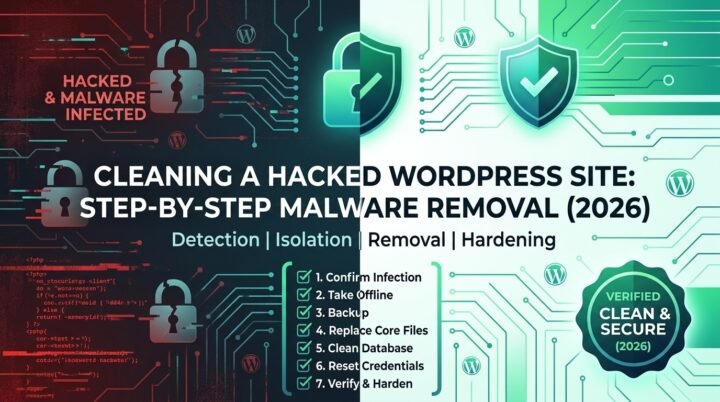
Immediately regenerate all eight authentication keys and salts, change your database password, check for unauthorized admin accounts, and run a full malware scan. If the repository was public, assume the credentials were harvested and act accordingly. For cleaning up a compromised site, follow the hacked WordPress cleanup guide.
Lock It Down Now
wp-config.php is the single most valuable file on your WordPress server. Every credential an attacker needs to take over your site is in one place. The steps in this guide take 15 minutes to implement and close the most common attack vectors targeting this file.
Set permissions to 600. Block HTTP access with .htaccess or nginx. Add the security constants. Regenerate your salts. Delete backup files. That’s the baseline – and it puts you ahead of the vast majority of WordPress installations running with default settings.
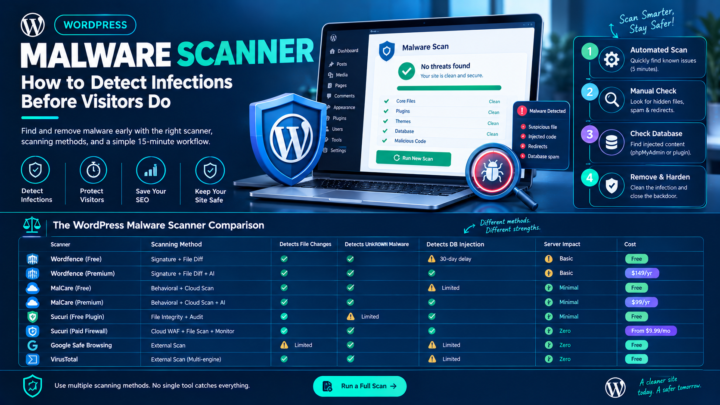
For protecting the rest of your WordPress installation, see the best security plugins comparison. For detecting infections that have already happened, use the WordPress malware scanner guide. For recovering from a compromise, follow the hacked site cleanup guide.
This guide covers standard WordPress security hardening. If your site handles sensitive data (healthcare, financial, government), additional compliance requirements (HIPAA, PCI DSS, FedRAMP) may mandate specific server configurations beyond what’s covered here.