WordPress Malware Scanner: How to Detect Infections Before Visitors Do
 By Admin
10 min read
By Admin
10 min read 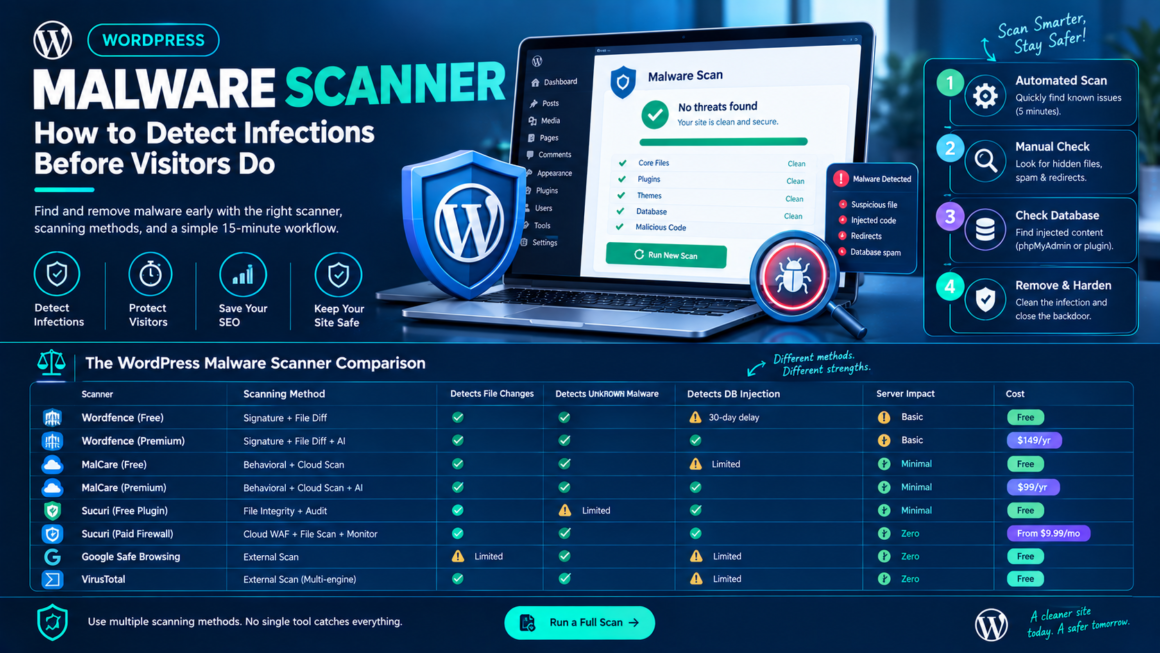
Most site owners find out they’ve been hacked the wrong way a hosting suspension notice, a Google “Deceptive site ahead” warning, or a customer emailing to say they got redirected to a gambling site. By that point, the malware has been live for days or weeks, visitors have been exposed, and your SEO is already taking the hit.
A WordPress malware scanner finds infections before any of that happens. This guide covers how scanning actually works, what different scanners can and can’t detect, how to run both automated and manual scans, and a detection workflow you can set up in under 15 minutes so you’re never the last person to know your site is compromised.
How WordPress Malware Scanners Actually Work
Not all scanners look for malware the same way. The three scanning methods have fundamentally different strengths and blind spots, and understanding them is what separates “I ran a scan, and it said clean” from “I know my site is clean.”
Signature-based scanning (file comparison)
The scanner compares your WordPress core files, plugins, and themes against known-good versions from the WordPress.org repository. Any file that differs from the official version is flagged. It also checks against a database of known malware signatures and specific code patterns identified in previous attacks.
Strengths: Fast, reliable for known threats, catches modifications to core files immediately.
Blind spots: Only catches what it recognizes. Novel malware with no matching signature, obfuscated code that doesn’t match known patterns, and zero-day payloads all slip through. The signature database is only as good as its update frequency. Wordfence Premium updates in real time; the free version is delayed by 30 days.
Tools: Wordfence (primary method), Sucuri server-side scanner.
Behavioral / heuristic scanning
Instead of matching known signatures, the scanner looks for suspicious behaviors: calls to eval(), base64_decode(), dynamic file inclusion from external URLs, code that tries to hide itself, or patterns resembling data exfiltration. Some newer scanners use AI-driven similarity analysis to flag code that resembles known malware even without an exact match.
Strengths: Can catch novel malware that hasn’t been catalogued yet. Better at detecting obfuscated and polymorphic payloads.
Blind spots: Higher false positive rate; legitimate plugins sometimes use eval() or base64_decode() for valid reasons. Requires human judgment to interpret results.
Tools: MalCare (primary method), Wordfence Intelligence (AI layer).
External / remote scanning
The scanner checks your site from the outside like a visitor analyzing the public-facing HTML, JavaScript, and HTTP responses for injected scripts, redirects, blacklist status, and known malicious domains.
Strengths: Zero server impact. No plugin installation required. Catches what visitors actually experience.
Blind spots: Only sees what’s publicly visible. A backdoor sitting quietly in /wp-content/uploads/wp-tmp.php that never loads on the front end is invisible. Referrer-based redirects that only fire for visitors arriving from Google won’t trigger when the scanner visits directly. Database-injected spam cloaked from logged-in users stays hidden.
Tools: Sucuri SiteCheck (free), Google Safe Browsing, VirusTotal.
The honest answer: no single method catches everything
This is why security professionals layer scanners:
- External scan → catches what visitors see right now.
- File-level scan → catches modifications to known files and known signatures.
- Behavioral scan → catches novel or obfuscated malware.
- Database scan → catches injected content in posts, options, and user tables.
- Manual inspection → catches everything the automated tools miss.
A scan that says “clean” means “clean according to this method.” Not “definitively uninfected.”
The WordPress Malware Scanner Comparison
Here’s which scanner catches what, based on actual scanning methods, not marketing claims.
| Scanner | Type | Detects file changes | Detects unknown malware | Detects DB injection | Server impact | Cost |
|---|---|---|---|---|---|---|
| Wordfence (free) | Signature + file diff | ✅ Strong | ⚠️ 30-day delay | ⚠️ Basic | Moderate | Free |
| Wordfence (premium) | Signature + file diff + AI | ✅ Strong | ✅ Real-time | ⚠️ Basic | Moderate | $149/yr |
| MalCare (free) | Behavioral (cloud) | ⚠️ Sync delay | ✅ Good | ✅ Yes | None | Free (detect only) |
| MalCare (premium) | Behavioral (cloud) | ✅ Good | ✅ Good | ✅ Yes | None | $149/yr |
| Sucuri SiteCheck | External / remote | ❌ External only | ❌ Misses hidden | ❌ No | None | Free |
| Sucuri (plugin) | File integrity + audit | ✅ Good | ⚠️ Moderate | ⚠️ Basic | Low | Free plugin |
| WP-CLI checksum | Core file verification | ✅ Core only | ❌ No | ❌ No | Minimal | Free |
For most single-site owners: Wordfence free gives the strongest scanning for zero cost, with the trade-off of server-side resource use and 30-day signature lag. If your hosting can’t handle it, MalCare free scans in the cloud with zero impact but only detection; removal is premium. For a quick external gut-check, Sucuri SiteCheck takes 10 seconds.
For a deeper comparison including firewalls and cleanup services, see the security plugins comparison.
How to Run a Malware Scan (Step by Step)
Automated plugin scan (Wordfence)
- Install and activate Wordfence (Plugins → Add New → search “Wordfence”).
- Navigate to Wordfence → Scan.
- Click Start New Scan.
- The scan checks: core file integrity, plugin/theme file integrity, known malware signatures, suspicious URLs, content safety, and password strength.
- Review results sorted by severity: Critical (red), Warning (yellow), Informational (blue).
- For each critical finding: click “See how to fix” or “View File” to inspect the code.
Schedule it: Wordfence → All Options → Scan Options → enable “Schedule Wordfence Scans.” Set to daily. A scan that runs once and is forgotten is barely better than no scan.
WP-CLI core file verification (no plugin needed)
If you have SSH access, WP-CLI can verify core files against official checksums without any plugin:
# Verify WordPress core files against official checksums
wp core verify-checksums

# A clean install returns: "WordPress installation verifies against checksums."
# Any modified or unexpected file in wp-admin/ or wp-includes/ is flagged.
This catches core file modifications but doesn’t scan plugins, themes, uploads, or the database. It’s a fast first-pass, not a complete scan.
Manual file-level checks (SSH)
For when you suspect an infection but want to verify before installing a scanner:
# Find PHP files in uploads (they shouldn't be there)
find /path/to/wp-content/uploads/ -name "*.php" -type f

# Find files modified in the last 7 days
find /path/to/wordpress/ -name "*.php" -mtime -7 -type f

# Search for common malware patterns
grep -rn "eval(base64_decode" /path/to/wp-content/
grep -rn "eval(gzinflate" /path/to/wp-content/
grep -rn "eval(str_rot13" /path/to/wp-content/
grep -rn "\$GLOBALS\[.*\](.*\$GLOBALS" /path/to/wp-content/

# Check for files mimicking core names in wrong locations
find /path/to/wp-content/ -name "wp-config.php" -o -name "wp-settings.php" -o -name "wp-includes.php"
Database scanning
Malware doesn’t always live in files. Injected JavaScript, spam links, and redirect code can be inserted directly into your database:
-- Check for injected scripts in posts
SELECT ID, post_title FROM wp_posts
WHERE post_content LIKE '%<script%src=%'
   OR post_content LIKE '%eval(%'
   OR post_content LIKE '%base64_decode%'
   OR post_content LIKE '%<iframe%';

-- Check for injected content in options (widgets, settings)
SELECT option_name, LEFT(option_value, 200) FROM wp_options
WHERE option_value LIKE '%eval(%'
   OR option_value LIKE '%base64_decode%'
   OR option_value LIKE '%<iframe%src=%'
   OR option_value LIKE '%<script%src=%';

-- Check for rogue admin users
SELECT u.ID, u.user_login, u.user_email, u.user_registered
FROM wp_users u
JOIN wp_usermeta m ON u.ID = m.user_id
WHERE m.meta_key = 'wp_capabilities'
  AND m.meta_value LIKE '%administrator%'
ORDER BY u.user_registered DESC;
Any results from the first two queries need manual inspection. Not every <script> is malware but every unexpected one needs an explanation.
External scan (Sucuri SiteCheck)
For a zero-install quick check:
- Go to sitecheck.sucuri.net.
- Enter your URL.
- Review results for: malware detected, blacklist status, and outdated software.
Remember: this only catches publicly visible infections. A clean SiteCheck doesn’t mean your files and database are clean.
Signs of Infection Scanners Don’t Always Catch
Some infections are designed to evade automated scanning. Watch for these manually:
Referrer-based redirects. The redirect only fires for visitors arriving from Google, not for direct visits, logged-in users, or scanning tools. Test by clicking your own site from a Google search result in incognito. If you get redirected but the scanner says clean, the malware is using HTTP_REFERER checks.
Cloaked content. Spam content visible only to search engine crawlers, not to human visitors. Check by fetching your pages as Googlebot:
# Fetch as Googlebot to see cloaked content
curl -A "Mozilla/5.0 (compatible; Googlebot/2.1; +http://www.google.com/bot.html)" https://yourdomain.com/
Compare the output to what your browser shows. Any difference is a red flag.
Timed payloads. Malware that activates on a cron schedule, dormant most of the time, active for a few hours a day. A scan during the dormant window finds nothing. Daily automated scanning improves the odds.
Backdoors without front-end symptoms. A .php file in uploads that does nothing unless directly accessed with specific parameters. No visible symptoms, just a quiet access point for when the attacker returns. The file-system grep commands above catch these by pattern; external scanners never will.
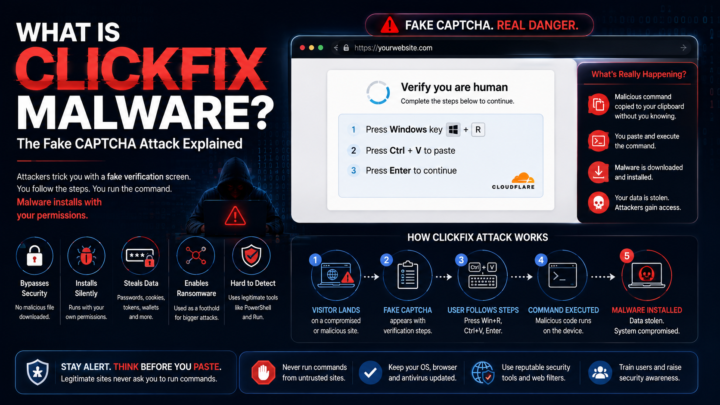
ClickFix / fake CAPTCHA overlays. A JavaScript injection that displays a fake Cloudflare verification prompt. The overlay may only appear on first visit, only for specific countries, or only on specific pages, making it invisible to quick manual checks from your own IP.
Building a Detection Routine (15-Minute Setup)
The scanners above only work if they’re running. Here’s a detection routine that takes 15 minutes to set up and runs automatically from that point forward:
Daily (automated)
- Wordfence scheduled scan set to run daily, email alerts on critical findings (Wordfence → All Options → Scan Options).
- Google Search Console verify your site and enable email alerts. Google emails you when it detects security issues.
- Uptime monitoring a free service like UptimeRobot pings your site every 5 minutes. If the site goes down or returns an unexpected status code, you get an alert.
Weekly (2 minutes)
- Check Google Search Console → Security Issues manually, even with email alerts enabled.
- Review Wordfence scan results — not just critical alerts, but warnings that may indicate early-stage compromise.
- Spot-check in incognito. Visit your site in incognito. Click through from a Google search. Load 3–4 pages. Watch for redirects, overlays, or anything unexpected.
Monthly (10 minutes)
- Run the manual file checks (PHP in uploads, recently modified files, malware pattern grep).
- Run the database queries for injected scripts and rogue admin users.
- Check your user list (Users → All Users) for accounts you don’t recognize.
- Run Sucuri SiteCheck as an external cross-reference.
- Verify file permissions are correct (644 files, 755 directories, 600
wp-config.php).
After any incident or major change
- Full Wordfence scan after installing new plugins, updating themes, or making significant site changes.
- Core checksum verification (
wp core verify-checksums) after any WordPress core update. - Database spot-check after importing content from external sources.
What to Do When a Scan Finds Something
When a scanner flags malware:
- Don’t panic, but don’t ignore it. Not every finding is critical; some are warnings about suspicious patterns in legitimate plugins. But every critical finding needs immediate action.
- Verify the finding. Open the flagged file and compare it to a clean version. Is the code actually malicious, or is it a false positive?
- If it’s real: follow the complete cleanup guide: isolate, back up, clean, close the entry point, and harden.
- If you’re not sure: quarantine the file (rename it, don’t delete) and get a second opinion from a different scanner or a security professional.
- After cleanup: run another full scan to confirm, check Google Search Console for warnings, and monitor for 48–72 hours for reinfection.
WordPress Malware Scanner FAQ
Is Wordfence free scan good enough?
For most single sites, yes. The free scan includes file integrity checking, known malware signatures, and basic database checks. The 30-day signature delay vs. premium matters mainly for high-value targets.
Can a malware scanner slow my site?
Endpoint scanners (Wordfence) use server resources during scans. On managed hosting or VPS, the impact is negligible. On cheap shared hosting, schedule scans during low-traffic hours. Cloud-based scanners (MalCare) have zero server impact.
Should I run multiple scanners?
Not simultaneously; two active security plugins cause conflicts. But layering different methods makes sense: Wordfence for file-level scanning + Sucuri SiteCheck for external checks + manual database queries. Different methods, different blind spots covered.
Why did Sucuri SiteCheck say “clean” when my site is infected?
SiteCheck only sees publicly visible content. Backdoors, database injections, cloaked content, and referrer-based redirects are invisible to external scanners. A clean external scan is necessary but not sufficient.
How often should I scan?
Daily automated scans, weekly manual spot-checks, and monthly deep checks (database queries, file permissions, external scan). After any plugin installation or site change, run a full scan.
Can malware hide from scanners?
Yes. Sophisticated malware uses obfuscation, polymorphism (changing its signature each time), cloaking (hiding from logged-in users), time-based activation, and fileless execution (running entirely from the database). No single scanner catches everything; layered detection is the answer.
Set Up Your Detection Now
A malware infection you catch in the first hour costs you a morning. One you catch after two weeks costs you traffic, reputation, and possibly a Google blacklist flag that takes 30 days to lift. Install Wordfence, enable daily scheduled scans, set up email alerts, verify your site in Google Search Console, and run the manual checks monthly. Fifteen minutes of setup saves weeks of recovery.
If your site has already been compromised, start with the hacked site cleanup guide. For choosing the right long-term security stack, see the security plugins comparison. For understanding how infections get delivered to your visitors, see the ClickFix / fake CAPTCHA explainer.
This guide is for informational purposes. If your site handles sensitive data (healthcare, financial, government), consult a qualified security professional for your scanning and incident response requirements.