How to Write Alt Text for Images: Rules, Examples & Common Mistakes

Turn on a screen reader and tab through the average website and you’ll hear it: “Image. Image. IMG_4523 dot jpg. Image. Link, graphic.” Alt text is where accessibility quietly goes to die — most images either have none, or have something worse than none.
This guide covers how to write alt text that actually works: the rules, a decision tree for what each image needs, real good-vs-bad HTML examples, and the specific mistakes that show up in almost every audit. By the end you’ll be able to look at any image on a page and know exactly what its alt should say — or whether it should say anything at all.
What alt text is (and who depends on it)
Alt text is the alt attribute on an <img> element — a text alternative that stands in for the image when the image itself can’t be seen:
<img src="team-lunch.jpg" alt="The engineering team sharing lunch on the rooftop terrace">
Three groups rely on it:
- Screen reader users. Blind and low-vision people hear the
alttext read aloud in place of the image. It’s often their only way to know what’s there. - Anyone with a broken or slow-loading image. If the file 404s or the connection drops, the browser shows the alt text instead.
- Search engines. Google reads alt text to understand images, which is why it doubles as an SEO signal (more on that below).
In WCAG terms, this is Success Criterion 1.1.1 Non-text Content, and it’s Level A — the most basic conformance level there is. Getting alt text wrong isn’t a minor polish issue; it’s a failure at the floor of accessibility.
The one rule that governs everything: convey purpose, not pixels
Good alt text describes the image’s purpose in its context, not just what the image looks like. The same photo needs different alt text depending on why it’s on the page.
Take a photo of a red sneaker:
- On a product page, its purpose is to show the product:
alt="Red canvas high-top sneaker with white laces". - As a link to the product, its purpose is navigation:
alt="Shop the Red Canvas High-Top". - As a decorative background in a lifestyle banner, it has no informational purpose:
alt="".
Same pixels, three different correct answers. That’s why you can’t write alt text from a spreadsheet of filenames — you have to know what each image is doing.
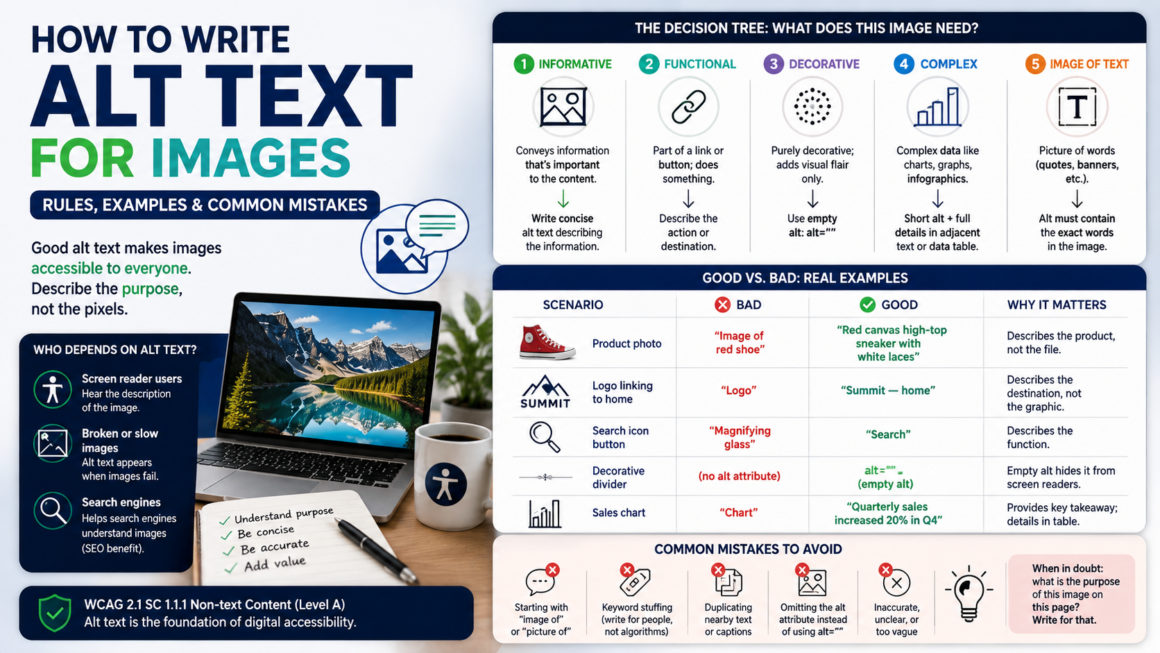
The decision tree: what does this image need?
Before writing anything, sort each image into one of five buckets.
1. Informative images convey content — a product photo, a diagram, a screenshot showing a step. → Write concise alt text describing the information.
2. Functional images are inside a link or button; they do something. A logo linking home, a magnifying-glass search icon. → Describe the action or destination, not the graphic. The alt for a search icon is Search, not magnifying glass.
3. Decorative images add visual flair but no information — dividers, background textures, a generic stock photo next to text that already says everything. → Use an empty alt (alt="") so screen readers skip them entirely.
4. Complex images carry a lot of data — charts, graphs, infographics, maps. → Give a short alt naming what it is and the key takeaway, then provide the full detail in adjacent text or a data table.
5. Images of text are pictures of words — a quote graphic, a text-heavy banner. → The alt must contain the exact words in the image. Better still: don’t use images of text at all; use real, styleable text.
Nail the bucket and the alt text almost writes itself.
The rules for writing good alt text
- Describe accurately and concisely. Aim for roughly a sentence — around 125 characters is a good working target (some older screen readers truncate very long alt). It’s not a WCAG limit, just a usability guideline. If you need more, the image is probably complex — use a long description instead.
- Don’t start with “image of” or “picture of.” Screen readers already announce it as an image. “Image of a red sneaker” gets read as “Image, image of a red sneaker.” Redundant. Just say “Red sneaker…”. (Exception: when the medium matters — “Watercolor painting of…”, “Screenshot of…”.)
- For functional images, describe the function. A linked logo’s alt is the destination (
Acme — home), notlogo. - Empty alt for decorative — but never omit the attribute.
alt=""and no alt attribute at all are completely different (see mistakes below). - Don’t keyword-stuff. Cramming SEO terms into alt makes it worse for screen reader users and can be read as spam. Write for the person listening.
- Don’t duplicate nearby text. If a caption or heading right beside the image already says it, a decorative
alt=""avoids making the user hear it twice. - Spelling and punctuation count — it’s read aloud. A missing space or a typo becomes a garbled word in someone’s ears.
Good vs. bad: real examples
| Scenario | ❌ Bad | ✅ Good | Why |
|---|---|---|---|
| Product photo | alt="image of a shoe" | alt="Red canvas high-top sneaker with white laces" | Drops the redundant prefix; describes the actual product. |
| Decorative divider | alt="decorative swirl graphic" | alt="" | Decorative images should be skipped, not announced. |
| Logo linking home | alt="logo" | alt="Acme — home" | It’s a link; describe where it goes, not the picture. |
| Search icon button | alt="magnifying glass" | alt="Search" | Functional image — name the action. |
| Bar chart | alt="bar chart" | alt="Bar chart: organic traffic grew from 2,000 to 8,500 visits, Jan–Jun 2026" + full data in a table below | Short alt + long description for complex data. |
| Quote graphic (image of text) | alt="quote" | alt="\"Accessibility is not a feature.\" — J. Rivera" | Alt must contain the exact text shown. |
| Team headshot (About page) | alt="woman smiling" | alt="Jane Doe, Head of Engineering" | Context is the person’s identity, not their expression. |
In HTML, the decorative and functional cases are the two developers most often get wrong:
<!-- Decorative: skip it -->
<img src="corner-flourish.svg" alt="">

<!-- Functional: describe the action, not the icon -->
<button aria-label="Search">
  <img src="search.svg" alt="">
</button>
(Note the search button: when the button already has an aria-label, the inner icon takes alt="" so the label isn’t announced twice.)
Common mistakes that show up in every audit
- Missing the
altattribute entirely. With noalt, many screen readers fall back to reading the filename — so users hear “I-M-G underscore 4 5 2 3 dot j-p-g.” Always include the attribute, even if empty. - Using the filename as alt.
alt="IMG_1234.jpg"oralt="hero-final-v3-USE-THIS". Meaningless. - The “image of…” prefix. Covered above — cut it.
- Verbose alt on decorative images. Describing a background texture in detail forces users to listen to noise. Decorative =
alt="". - The same alt on every instance. Twenty images all reading “logo” or “banner.” Each image’s alt should reflect its own purpose.
- Keyword-stuffed alt.
alt="cheap shoes buy shoes best shoes running shoes 2026". Hurts users and can trip spam signals. - Describing every pixel. Alt text isn’t a full scene description. Convey the point, not the paint.
- Alt text on a CSS background image. Background images have no
altattribute at all — so if an image carries real information, a CSS background is the wrong technique. Use an<img>, or addrole="img"andaria-labelto the element. - Functional images with no/empty alt. An icon-only link with
alt=""and no label leaves the screen reader announcing the raw URL. Functional images need a real label.
Technical edge cases developers actually hit
alt="" vs. no alt vs. role="presentation". Empty alt is the correct, explicit “skip this” for decorative images. Omitting alt is a bug that triggers filename read-out. You rarely need role="presentation" on an image if you’ve already set alt="".
CSS background images. No alt exists. If decorative, that’s fine — it’s invisible to assistive tech by default. If it conveys meaning, either switch to <img> or expose it with role="img" + aria-label on the container.
Inline SVG. An <svg> isn’t an <img> and has no alt. For an informative inline SVG, add role="img" and either a <title> element or aria-label:
<svg role="img" aria-label="Verified account">…</svg>
For a decorative SVG, add aria-hidden="true" and focusable="false".
<figure> and <figcaption>. A caption and alt text serve different jobs — the caption is visible to everyone; the alt substitutes for the image. If the caption already fully describes the image, use alt="" to avoid a double announcement. If it doesn’t, the alt still carries the essential description.
Icon fonts and icon-only buttons. These aren’t images at all — an icon font glyph won’t announce anything. Put an aria-label on the button so its purpose is spoken.
Lazy-loaded images still need alt. Deferring the load doesn’t defer the requirement.
Alt text and SEO — the same thing, done once
There’s no tension between accessibility and SEO here: Google reads the same alt attribute your screen reader users hear. Descriptive, accurate alt text helps images surface in Google Image search and gives the surrounding page more context. What hurts both at once is keyword stuffing — it degrades the experience for listeners and reads as spam to search engines. Write natural, accurate alt text for the human first, and the SEO benefit follows for free.
This makes alt text one of the highest-leverage things on a page: one attribute serving accessibility, resilience, and search visibility simultaneously.
How to check your alt text
You can’t eyeball this across a whole site. Run the page through the Alt Text Reviewer to flag every image that’s missing an alt attribute, has an empty one where it shouldn’t, or is carrying junk like a filename — and get the list with the exact elements. Or scan the full page to catch alt-text issues alongside everything else in one pass.
Alt text is also one of the rows you’ll fill in when you create a VPAT — it maps directly to SC 1.1.1, the first row of the WCAG conformance table. It sits alongside color contrast, heading structure and color independence as the trio of checks that clean up the majority of everyday accessibility failures.
Alt Text FAQ
How long should alt text be?
Roughly a sentence — about 125 characters is a good target. There’s no hard WCAG limit, but if you need much more, the image is complex and needs a long description instead of a longer alt.
Should decorative images have alt text?
They should have an empty alt (alt=""), which tells screen readers to skip them. Don’t remove the attribute, and don’t describe them.
Does alt text help SEO?
Yes. Google uses it to understand and rank images. Write it for humans first; keyword stuffing hurts both accessibility and SEO.
What’s the difference between alt text and a caption?
A caption (<figcaption>) is visible to everyone and adds context. Alt text substitutes for the image for people who can’t see it. They can coexist, but shouldn’t repeat each other word-for-word.
Do I need alt text on every image?
Every <img> needs the alt attribute. Informative and functional images get descriptive text; decorative ones get alt="". The attribute is never optional.
Is alt="" the same as leaving alt off?
No — and this is the big one. alt="" means “intentionally decorative, skip it.” A missing alt is undefined behavior that usually makes screen readers read the filename aloud.
Fix your alt text in one pass
Every image on your site is making a promise to someone who can’t see it. Run your pages through the Alt Text Reviewer to find the missing, empty, and junk alt attributes, or scan the whole page to get every issue with the exact line to change. Free, no account.