PDF Accessibility: How to Make PDFs WCAG Compliant

A PDF can look perfect on screen clean layout, brand fonts, proper columns and be completely invisible to a screen reader. That’s because a PDF has two layers: the visual layer (what you see) and the structural layer (what assistive technology reads). Most PDFs ship with a gorgeous visual layer and no structural layer at all. The screen reader gets a flat stream of characters with no headings, no reading order, and no idea what’s an image and what’s a paragraph.
This guide covers how to make accessible PDFs that actually work: what the standards require, how to build accessible PDFs from the source, how to remediate existing ones, and the specific failures that show up in every audit. Check any PDF against these requirements with the PDF Accessibility Checker.
Why PDFs are an accessibility problem
PDFs were designed for print fixed layouts, exact positioning, precise typography. They were not designed for adaptive reading. Unlike HTML, which is structured by default (<h1>, <p>, <table>), a PDF is a flat page description: “put this glyph at coordinates (72, 680).” Without explicit tagging, there’s no structure, no semantic meaning, and no way for assistive technology to interpret the content.
That makes PDFs uniquely fragile from an accessibility standpoint:
- An untagged PDF is completely inaccessible to screen readers.
- A scanned PDF (an image of text) is both inaccessible and unsearchable.
- Multi-column layouts, tables, and forms frequently have broken reading order even when tagged.
- Most authoring tools (Word, InDesign, Google Docs) can export tagged PDFs but only if the source document uses proper structure. Export a visually-formatted document with no heading styles, and the PDF inherits the chaos.
The standards: WCAG, PDF/UA, and the law
Two standards govern PDF accessibility, and they overlap heavily.
WCAG 2.1 Level AA
The same standard that applies to websites applies to PDFs when they’re published as digital content. The success criteria that hit PDFs hardest:
| Success Criterion | What it means for PDFs |
|---|---|
| 1.1.1 Non-text Content | Every image, chart, and graphic needs alt text. Decorative images get empty alt. |
| 1.3.1 Info and Relationships | Headings, lists, tables, and other structure must be conveyed through tags not just visual formatting. |
| 1.3.2 Meaningful Sequence | Reading order must be logical. In multi-column layouts, the tag order determines what the screen reader reads first. |
| 1.4.3 Contrast | Text must meet 4.5:1 for normal, 3:1 for large. Same rules as the web. |
| 2.1.1 Keyboard | All interactive elements (form fields, links, buttons) must be operable by keyboard. |
| 2.4.2 Page Titled | The document must have a title set in its metadata (not just the filename). |
| 3.1.1 Language of Page | The document language must be specified in metadata so screen readers pronounce words correctly. |
| 4.1.2 Name, Role, Value | Form fields need proper labels, and interactive elements need programmatic names. |
PDF/UA (ISO 14289)
PDF/UA (Universal Accessibility) is an ISO standard specifically for PDF accessibility. It defines the technical requirements for how tags, metadata, fonts, and structure must be implemented inside the PDF file. PDF/UA-1 (2012) aligned with WCAG 2.0; PDF/UA-2 (2024) aligns with WCAG 2.x and the latest PDF specification.
The practical relationship: if a PDF is fully PDF/UA compliant, it will generally meet WCAG for PDFs. Think of WCAG as the outcome standard (“content must be perceivable”) and PDF/UA as the technical standard (“here’s exactly how the tag tree must be structured to achieve that”).
The legal picture in 2026
- ADA Title II (DOJ final rule): WCAG 2.1 Level AA for all electronic documents published by state and local government. Deadlines were pushed to April 2027 (large entities) and April 2028 (smaller entities), but documents published from April 24, 2026 onward must be accessible if they’re used to apply for, access, or participate in government services.
- Section 508: Requires accessible PDFs from federal agencies and their contractors. References WCAG 2.0 AA, but practically expects 2.1 AA.
- European Accessibility Act (EAA): EN 301 549 / WCAG 2.1 AA, enforced since June 2025. Applies to PDFs as digital content.
- Private sector: Courts have increasingly held that PDFs published on commercial websites fall under ADA Title III, especially in industries like banking, healthcare, and education.
The short version: if you publish PDFs online, they need to be accessible. The “it’s just a PDF” defense doesn’t hold up.
The anatomy of an accessible PDF
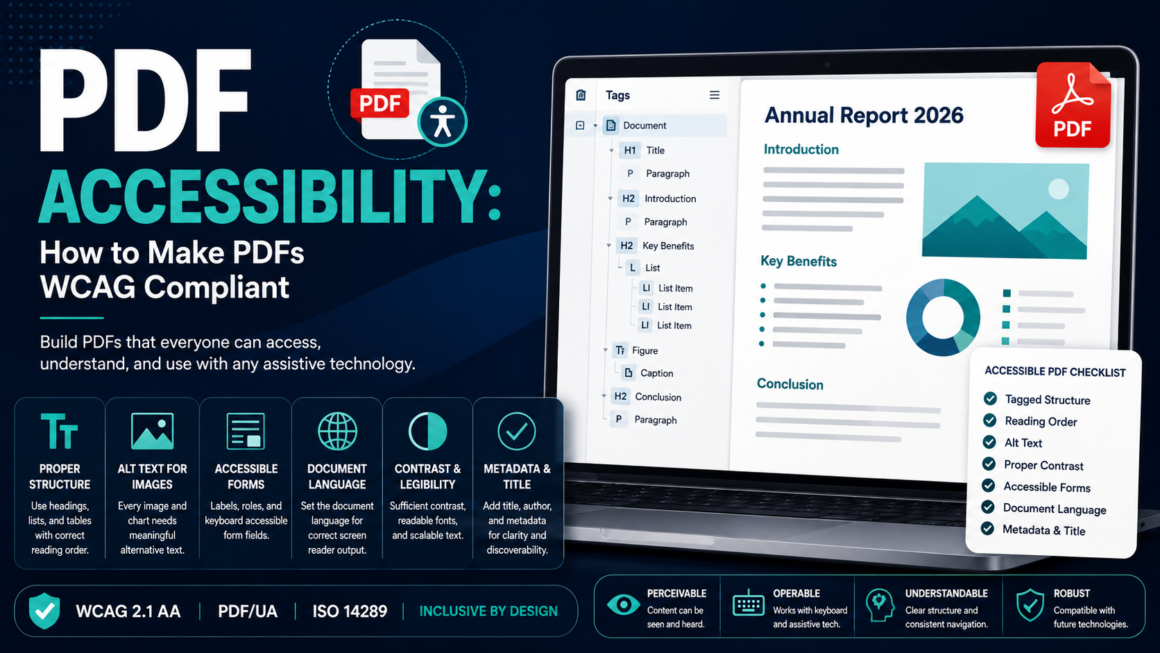
An accessible PDF has a hidden structure layer the tag tree that mirrors how you’d mark up the same content in HTML. Here’s what it contains:
Document metadata:
- Title (not the filename the actual document title, set in Document Properties).
- Language (e.g.,
en-US). - Author (optional but good practice).
Tags for every content element:
<H1>,<H2>,<H3>etc. for headings in proper hierarchy, just like heading structure on the web.<P>for paragraphs.<L>,<LI>,<Lbl>,<LBody>for lists.<Table>,<TR>,<TH>,<TD>for tables, with header cells marked as<TH>.<Figure>for images, with alt text in the tag’s alternate text property.<Link>for hyperlinks.<Form>for form fields, with labels.
Logical reading order: The tag tree determines the sequence a screen reader follows. In a two-column layout, the tags must flow left column → right column, not interleave them line by line.
Artifacts: Decorative elements (page numbers, headers/footers, background graphics) that should be skipped by screen readers are marked as artifacts the PDF equivalent of aria-hidden="true".
How to create accessible PDFs from the source
The easiest path to an accessible PDF is building the structure in the source document before you export. Fixing a PDF after the fact is always harder and often more expensive than getting it right at the source.
From Microsoft Word
Word is the most common source, and it can produce well-tagged PDFs if you do this:
- Use built-in heading styles (Heading 1, Heading 2, etc.) don’t just make text big and bold. The heading style is what maps to
<H1>,<H2>in the PDF tag tree. - Use built-in list styles for bulleted and numbered lists.
- Add alt text to every image (right-click → Edit Alt Text). Mark purely decorative images as decorative.
- Build tables with the Insert Table tool, not with tabs or spaces. Mark header rows (Table Properties → Row → Repeat as header row).
- Set the document title in File → Properties (not just the filename).
- Set the document language in File → Options → Language.
- Export as PDF with “Document structure tags for accessibility” checked (File → Save As → PDF → Options → check the box). This is the single most forgotten step.
From Adobe InDesign
InDesign produces the highest-quality tagged PDFs of any authoring tool, but only with setup:
- Use paragraph styles mapped to export tags. In the Paragraph Style options → Export Tagging, set the PDF tag (e.g.,
H1,H2,P). - Set the Articles panel to define reading order. Without it, InDesign exports tags in the order objects were placed on the page — which is almost never the reading order.
- Add alt text to images via Object → Object Export Options → Alt Text.
- Set table headers in Table → Table Options → Headers and Footers.
- Export with Create Tagged PDF checked and Acrobat compatibility set to Acrobat 2020 or later.
From Google Docs
Google Docs can export tagged PDFs, but with limitations: heading styles map correctly, basic lists work, but table headers, image alt text, and reading order are less reliable. For simple text documents, Docs is fine. For anything with tables, multi-column layouts, or complex structure, use Word or InDesign.
Scanned documents
A scanned PDF is an image no text layer at all. To make it accessible:
- Run OCR (Optical Character Recognition) to create a text layer. Acrobat Pro, ABBYY FineReader, and open-source tools like Tesseract can do this.
- Tag the resulting text OCR creates text but not structure. You still need to add headings, lists, table tags, and reading order.
- Verify OCR accuracy OCR errors (misread characters) become screen-reader errors. Proofread, especially in tables and numbers.
Auto-tagging after OCR is a starting point, not a finish line. The auto-generated tags are almost always wrong for anything more complex than a single-column text document.
How to remediate an existing inaccessible PDF
You’ve inherited a 40-page PDF with no tags. Here’s the workflow:
Step 1 — Run the accessibility checker
Start with the PDF Accessibility Checker to get the list of issues. Then open the PDF in Acrobat Pro and run its built-in checker (Accessibility → Full Check) for the detailed tag-level report.
Step 2 — Add or fix tags
Open the Tags panel in Acrobat Pro (View → Show/Hide → Navigation Panes → Tags). This is where you’ll spend most of your time:
- Add missing tags: Select text in the document, right-click in the Tags panel, and choose “Create Tag from Selection.” Assign the correct tag type.
- Fix wrong tag types: A heading tagged as
<P>needs to be changed to<H2>(or whatever level it is). Right-click the tag → Properties → Type. - Nest tags properly: Headings must follow hierarchy (H1 → H2 → H3, no skipping). List items must be inside
<L>tags. Table cells must be inside<TR>tags.
Step 3 — Fix reading order
Open the Reading Order tool (Accessibility → Reading Order). Walk through each page and verify the numbered regions flow logically — top to bottom, left column before right column. Drag regions to reorder them in the Tags panel.
Step 4 — Add alt text to images
Click each <Figure> tag → Properties → Alternate Text. Write descriptive alt text following the alt text rules. Mark decorative images as artifacts (right-click → Change Tag to Artifact).
Step 5 — Fix tables
Every data table needs:
<TH>tags for header cells (not<TD>).- A
Scopeattribute on headers (Row or Column) so screen readers announce headers for each data cell. - No merged cells if avoidable — merged cells break screen-reader navigation. If unavoidable, set
ColSpanandRowSpanattributes correctly.
Step 6 — Set document metadata
File → Properties:
- Title: Set a real title (not the filename).
- Language: Set the primary language.
- Initial View: Set “Document Title” (not filename) as the window title.
Step 7 — Mark artifacts
Headers, footers, page numbers, watermarks, and decorative borders should be marked as artifacts so screen readers skip them. Select the element → right-click in Tags → Change Tag to Artifact.
Step 8 — Test with a screen reader
Automated checkers catch structural issues. They don’t catch meaning. Open the final PDF in NVDA or JAWS and listen to it read. Does the reading order make sense? Are the headings announced correctly? Do table headers read for each data cell? Does the alt text describe the actual content? This is the step that separates a technically tagged PDF from a genuinely accessible one.
The failures that show up in every audit
- No tags at all. The number-one PDF accessibility failure. Untagged = inaccessible, full stop.
- No document title. The title metadata is empty or set to the filename (
report_final_v3.pdf). Screen readers announce this as the document name. - No language set. Without a language tag, screen readers guess the language and guess wrong for multilingual documents.
- Headings that aren’t tagged as headings. Big bold text that looks like a heading but is tagged as
<P>. Screen-reader users can’t navigate by heading. - Broken reading order. Multi-column layouts where the tag order interleaves columns, so the screen reader reads line 1 of column A, then line 1 of column B, then line 2 of column A.
- Tables without header cells. A data table where every cell is
<TD>the screen reader reads “cell, cell, cell” with no context for what each number means. - Images with no alt text. Or worse, auto-generated alt from the filename: “IMG_2847.jpg.”
- Form fields without labels. A PDF form where the screen reader announces “text field” with no indication of what to type.
- Scanned PDFs with no OCR. A flat image masquerading as a document. No text, no structure, no accessibility.
Should you even use a PDF?
Honest question worth asking before you remediate. WebAIM’s consistent recommendation is that HTML is almost always more accessible than a PDF for the same content. HTML reflows naturally, respects user font and spacing preferences, works with every screen reader, and costs nothing to make accessible if you use semantic markup.
PDFs make sense when you need:
- A fixed layout for print (legal documents, forms, certificates).
- A snapshot of a document at a specific point in time (contracts, signed agreements).
- Offline distribution where web access isn’t guaranteed.
For everything else reports, guides, blog content, policy documents, announcements publish as HTML and skip the PDF accessibility problem entirely. If you must offer both, make the HTML the primary version and the PDF a downloadable supplement.
PDF Accessibility FAQ
Is an untagged PDF accessible?
No. Without tags, a PDF has no structure for screen readers to interpret. Tags are the minimum requirement.
Does “Save as PDF” from Word create an accessible PDF?
Only if you check the “Document structure tags for accessibility” option during export and the source document uses proper heading styles, alt text, and table structure. The export reflects whatever structure (or lack of it) exists in the source.
Do I need Acrobat Pro to fix PDFs?
For serious remediation, yes Acrobat Pro is the standard tool for editing the tag tree, reading order, and metadata. Free alternatives exist (PAC, axesPDF) for checking, but editing usually requires Pro.
What is PDF/UA? An ISO standard (14289) that defines the technical structure requirements for accessible PDFs. If a PDF meets PDF/UA, it generally meets WCAG for PDFs. PDF/UA-2 (2024) is the latest version.
How long does PDF remediation take?
It depends on page count and complexity. A simple 10-page text document might take an hour. A 50-page report with tables, charts, and multi-column layouts can take a full day or more. Automation helps with detection but not with judgment calls like alt text quality and reading order.
Are PDFs covered by the ADA?
Yes. Courts and the DOJ have consistently treated PDFs published online as digital content subject to ADA requirements. The 2024 ADA Title II rule explicitly covers electronic documents under WCAG 2.1 Level AA.
Check your PDFs now
Most PDF accessibility issues are invisible unless you check for them — the document looks fine on screen while the tag tree is empty or broken underneath. Run any PDF through the PDF Accessibility Checker to surface missing tags, alt text gaps, reading-order problems, and metadata issues. Pair it with the Alt Text Reviewer for the image side and a full site scan to catch accessibility issues across your published pages. Free, no account.
If you’re recording PDF accessibility in a VPAT, the key criteria are SC 1.1.1, 1.3.1, 1.3.2, 2.4.2, and 3.1.1 the ones where PDFs fail most often.
This article is general guidance, not legal advice. PDF accessibility requirements vary by jurisdiction and context confirm the standards that apply to your organization before making compliance statements.